
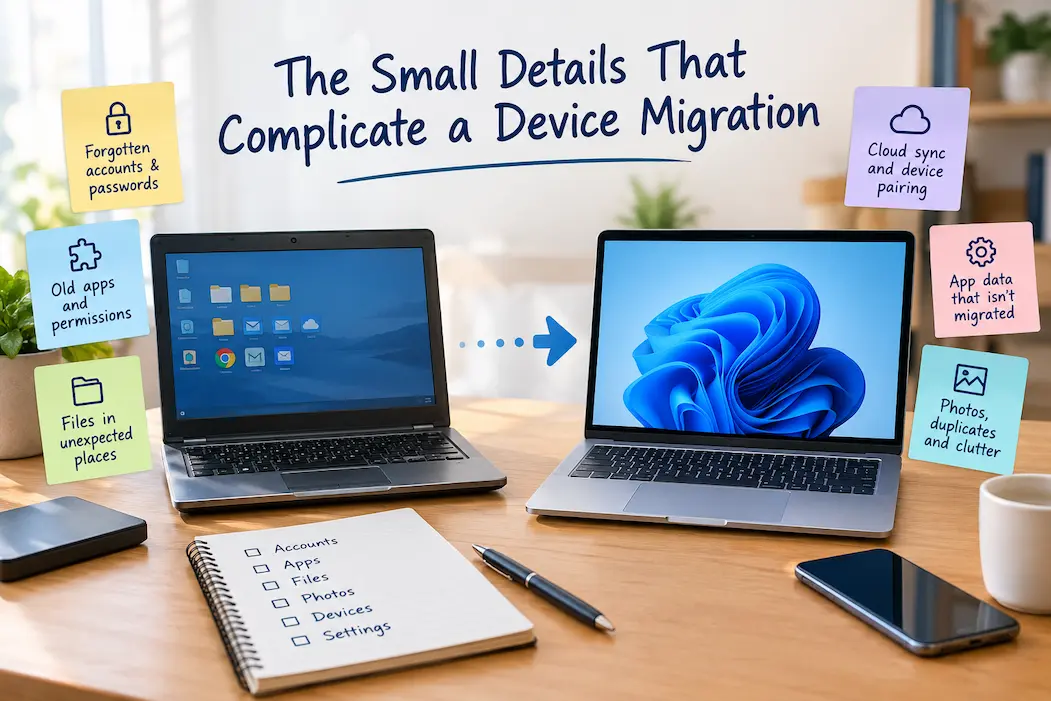
Switching from an old computer or phone to a new device is usually straightforward. Files are copied, apps are installed, and accounts are restored. Yet, many migrations prove frustrating—not because of major issues, but due to small details. Suddenly, an old browser profile, a locally stored document, a forgotten authentication method, or a device paired years ago turns out to be crucial.
The problem is that migration tools are designed to transfer supported data, not to understand which digital content is personally essential to you. In theory, you can migrate everything, but the result will still be incomplete regarding your actual usage habits. Some data is simply impossible to migrate because it is tied to specific apps or services.
A smoother migration, therefore, is less about copying everything and more about identifying the subtle dependencies inherent in your daily digital routine.
The Things You Notice Only When You Need Them
Some migration issues are obvious. For instance, you might lose photos, find an important folder empty, or discover an app won’t open. However, the trickiest problems are often those that only arise when you actually need to use the affected feature.
You might need to authorize an old account from your previous device. Browser bookmarks you haven’t opened in months could unexpectedly help you find the information you need. You might see a note-taking app, only to find it lacks your previous notes. Your old phone might still be paired with a wireless accessory. These issues do not necessarily crop up during the initial setup.
That is why, rather than simply verifying that the transfer completed successfully, it is wiser to test the new device against your daily habits. Make a call. Open an old file. Log in to key applications. Connect your frequently used peripherals. Use the apps you rely on regularly. You may discover dependencies that a migration progress bar wouldn’t reveal during day-to-day use.
Your Accounts May Be More Connected Than They Look
One of the trickiest things to keep track of is the connection between your device and your online accounts.
You might have an operating system account, an email account, a cloud storage account, and various accounts for specific programs. Some services automatically detect new devices, while others may treat them as unknown and require additional verification.
The situation becomes even more complex if the old device is still trusted, or if an account relies on the old device for security verification. Before retiring your old device, check your important accounts and ensure you have alternative, reliable login methods in place.
Pay special attention to your primary email account, as it may be used to regain access to other services.
Authentication is a Separate Migration Task
Authentication apps and security mechanisms should not be treated like standard applications.
Simply installing the same authentication app on the new device does not mean that all accounts configured on the old device will be migrated. Some services have their own migration or backup mechanisms, while others require you to register the new device separately.
The best time to handle this is before completely wiping all data from the old device. Verify access rights to important accounts and ensure you have valid recovery options. A migration that saves thousands of files but prevents you from logging into key accounts is rarely a success.
Applications Can Contain Hidden Data
After installing an application, it may appear to function perfectly, yet the data you stored within it could be lost.
Examples include note-taking apps, accounting software, photo management software, email clients, voice recording programs, and project management applications. While the application itself is easily reinstalled, you may need to separately back up, synchronize, or export the locally stored data.
Therefore, do not view your list of applications as a complete migration checklist. Identify which programs contain data that is important to you and understand how those applications store that data. If data is synchronized with your account, ensure it is also accessible on your new device. If data is stored locally, save it before moving away from your old device.
It is particularly important to understand that reinstalling software and restoring data within that software are two different things.
The Downloads Folder Often Causes Unnecessary Confusion
Downloads can make a migration much messier than it needs to be.
Over the years, the folder may collect invoices, photographs, PDFs, software installers, forms, email attachments, duplicate files, and temporary material. Copying the entire folder means carrying all of that uncertainty to the new device. Deleting everything is equally risky because something important may be mixed in with the clutter.
Instead, review the folder before the migration and identify files that would be difficult to replace. Old installers are usually less important than a receipt or work document that exists nowhere else.
The Downloads Folder Audit Worksheet can help you review those files individually without turning the migration into a guessing game.
Browser Data Can Behave Differently From Other Files
Browsers are another source of small complications because they can contain several different types of information.
Bookmarks, passwords, browser profiles, extensions, reading lists, saved sessions, and settings may be synchronized differently. A person may sign into the browser on the new computer and assume everything has returned, only to discover that a particular profile or important bookmark is missing.
Before abandoning the old device, identify the browser information you actually use. Verify important bookmarks and saved information from the new device rather than relying on the appearance of the browser itself.
At the same time, migration is a good opportunity to leave behind years of unnecessary browser clutter. You do not need to recreate every extension and forgotten tab simply because they existed on the old machine.
File Locations Can Change Without You Realizing It
Another small complication is that the same type of information may live in different locations on different devices.
A document might have been stored locally on one computer but inside a synchronized folder on another. Photographs might have been imported into a particular application rather than saved in the folder you expected. A program may have created its own project directory somewhere outside your normal Documents folder.
This is one reason copying only familiar folders can be risky when the old computer has been used for several years.
Before the migration, think about the applications and workflows you use rather than only the standard folders. If a particular program creates files for you, find out where those files actually live.
Small Hardware Connections Can Break The Feeling Of Continuity
A new device can contain all your important files and still feel inconvenient because the accessories you use every day have not been properly configured.
Wireless earbuds, watches, printers, keyboards, speakers, cars, scanners, drawing tablets, and other peripherals may need to be paired or configured again. Some also depend on companion applications or device-specific settings.
You do not need to rebuild every old connection. Make a short list of the accessories you genuinely use and test them on the new device. If something is essential to your daily routine, verify the complete connection rather than simply checking whether the accessory appears in a Bluetooth list.
This is especially useful for equipment that you use only occasionally. A problem with a device you use every day will be noticed quickly; a scanner used once every few months may remain broken until the exact moment you need it.
Phone Numbers And Communication Services Can Add Another Layer
Phone migrations can have complications that do not appear in a computer migration.
Your number may be connected to account recovery, messaging services, financial applications, authentication, and other systems. Some services may recognize the new phone automatically, while others may ask for verification or require additional setup.
Messaging history also deserves attention because different services handle backups and transfers differently. Do not assume that installing the same application means every historical conversation and attachment will automatically appear.
If old messages contain information that you may need later, check conversations from different periods rather than looking only at the most recent ones.
Storage Problems Can Appear After The Transfer
A new device can have more storage than the old one, but that does not mean storage planning becomes irrelevant.
A migration may bring across years of photographs, videos, downloads, application data, and duplicate files that you no longer need. If the new device has less available storage than expected, the problem may not be the device itself. It may simply be carrying too much historical clutter.
This is a good reason to separate migration from cleanup. First make sure important information is preserved. Then decide what genuinely needs to live on the new device.
If you want to reduce the clutter after establishing that your information is safe, the Digital Cleanup Checklist provides a more deliberate way to approach the cleanup.
Don’t Forget Files That Exist Only Temporarily
Temporary files are usually harmless, but some things people think of as temporary are actually important.
A downloaded form waiting to be completed, a document exported from an application, a photo saved from a website, or a file sitting on the desktop because you planned to organize it later may never have been added to your normal backup system.
Before wiping the old device, give these temporary locations a quick review. You do not need to preserve everything. The purpose is simply to catch information that falls outside your normal filing and backup habits.
These are exactly the files that tend to be forgotten because they were never intended to remain there permanently.
The New Device Does Not Need To Be An Exact Copy
One of the biggest sources of unnecessary migration work is trying to reproduce every detail of the old setup.
If the old computer has 100 applications installed but you regularly use only 15, there is little benefit in bringing all 100 forward. If your old phone has years of screenshots and unused applications, moving them all simply creates a familiar-looking version of the same clutter.
A better approach is to preserve what supports your current life and deliberately rebuild the rest.
| What You Are Moving | Better Question To Ask |
|---|---|
| Personal files | Do I still need this information? |
| Applications | Do I actually use this program? |
| Application data | Is anything important stored inside it? |
| Browser information | Which bookmarks, credentials and settings matter? |
| Photos | Are the important originals safely preserved? |
| Downloads | Which files are difficult to replace? |
| Accounts | Can I sign in without the old device? |
| Accessories | Which connections do I actually use? |
| Settings | Which preferences improve my daily workflow? |
This approach reduces the amount of unnecessary material you have to troubleshoot on the new device.
Test The New Device Before You Let Go Of The Old One
The final complication is timing. People often assume the migration is finished as soon as the setup process says it is complete.
Instead, give the new device some ordinary use before resetting the old one. Open several older files, use your important applications, sign into important accounts, check photographs, test accessories, and perform the tasks you normally perform.
You do not need to wait indefinitely. The purpose is to give real-world use a chance to reveal problems that a setup wizard cannot predict.
If you discover something missing, the old device is still available to retrieve it.
A Practical Way To Check The Transition
Think of the migration in three stages:
Before the move: identify important information, verify backups, check application-specific data, and make sure important account recovery methods are available.
During the move: transfer the information you actually need and reinstall or configure the applications that support your current workflow.
After the move: use the new device normally and deliberately test the areas where a hidden dependency could cause trouble.
The New Device Transition Planner follows this same basic idea and can be useful if you prefer working through the transition in a structured way.
The Small Details Are Usually The Reason To Slow Down
Device migrations rarely fail because folders couldn’t be copied. What is truly frustrating are often the mundane details regarding seemingly obvious data: account relationships, authentication, application-specific information, browser profiles, local downloads, accessories, and temporary files.
That is why the benchmark for a successful migration shouldn’t be how quickly you clear out your old device. The real test is whether the new device can support your daily workflow without forcing you to constantly revert to your old routine.
You don’t need to migrate everything, nor do you need to check every single file. Protect important information. Verify your access rights. Test the workflows you actually use. Discard unnecessary “baggage.” Once you have performed these checks, decommissioning your old device becomes much easier.
Frequently Asked Questions
Why do minor issues sometimes arise after a device migration?
Migration technologies rely on supported data and services, but they cannot determine which information is critical to you. Individual programs, security settings, browser preferences, and accessories may also have their own migration requirements. Consequently, some content might migrate successfully, yet the migration itself remains incomplete.
Do I need to migrate everything from my old device?
Not necessarily. You don’t need to migrate unwanted apps, temporary downloads, forgotten browser extensions, or unnecessary clutter. Important files and useful app data should be preserved. The new device is intended to create a cleaner system, not simply replicate the old one.
What should I test first on my new device? First, test the items that would be most critical to lose: important files and photos, login and authentication details, app data and messages, and frequently used accessories. Then, use the new device as usual for a while to identify any less obvious issues.
When can I reset my old device?
Only reset your old device after ensuring that important information has been backed up elsewhere and that the new device can handle your daily tasks. If you are selling, donating, or giving away your old device, make sure to complete the proper procedure for removing accounts and resetting the device before transferring ownership.
Is switching to a new device a good opportunity to clear out digital clutter?
Yes, but it is best to keep the processes of preserving data and cleaning up separate. First, ensure that important information is safe. Then, decide what actually needs to be transferred to the new device. This can help avoid common mistakes, such as carrying over years of accumulated useless data or accidentally deleting important files in an attempt to clean up quickly.