
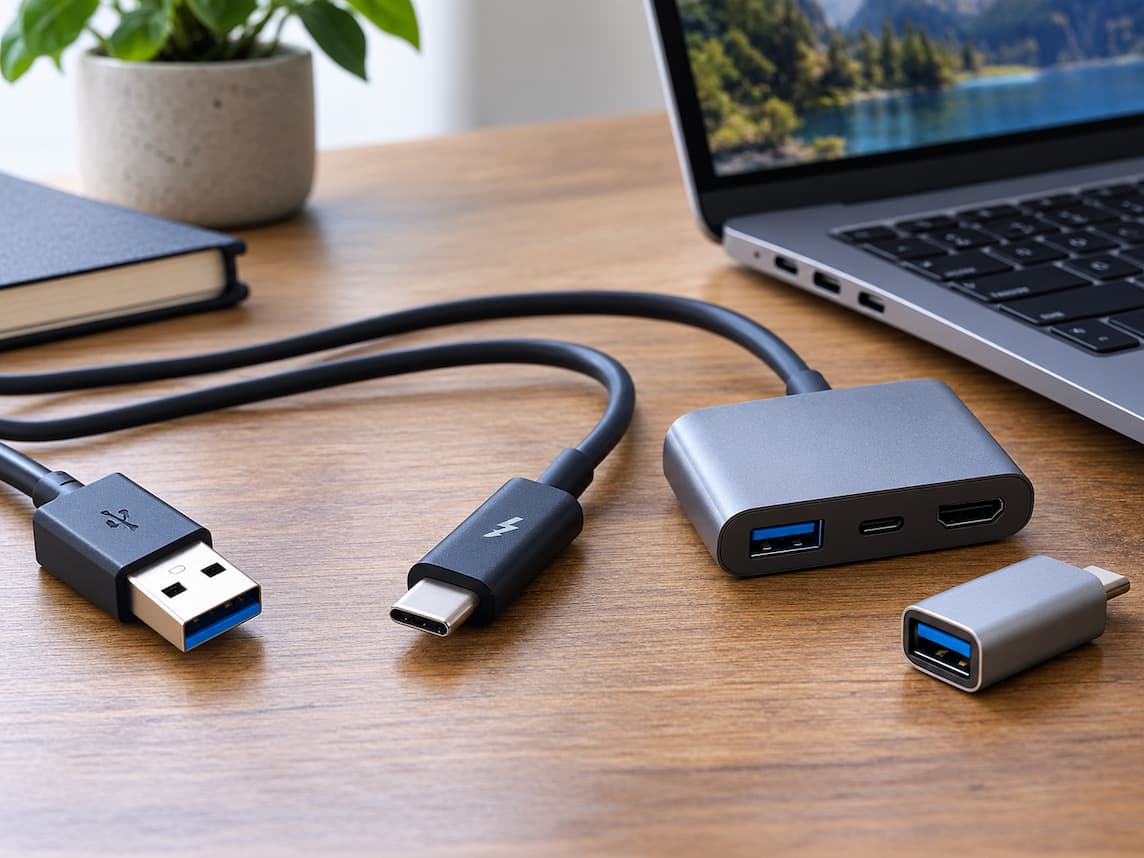
You buy a USB-C accessory because it fits the USB-C port on your laptop. Then you connect everything and discover that the external SSD is much slower than expected, the monitor does not display an image, or the charger does not deliver the power your computer needs. The problem is often not the accessory itself. It is the assumption that the shape of a connector tells you what the connection can do.
USB-C, USB-A, and Thunderbolt describe different parts of the connection story. USB-C is primarily a connector and cable interface. USB-A is another connector type. Thunderbolt is a connectivity technology that can use the USB-C connector. Data speed, charging, display output, and compatibility depend on the specific devices, ports, cables, and standards involved. That distinction matters when buying cables, chargers, hubs, docks, storage devices, monitors, and adapters. A connector can fit physically while still lacking the capability you expected.
USB-C Is a Connector, Not a Guarantee of Speed
USB-C is the small, reversible connector that has become common on laptops, phones, tablets, monitors, chargers, and accessories. USB-IF, the organisation responsible for USB standards, specifically distinguishes USB Type-C from USB 3.2, USB4, and USB Power Delivery. They are related technologies, but they are not interchangeable terms.
This is the first rule to remember:
USB-C tells you what the connector looks like. It does not, by itself, tell you the maximum data speed, charging capability, or display support.
A USB-C port might support relatively basic USB data. Another USB-C port might support much faster USB4 connectivity, display output, and high-power charging. A third might also support Thunderbolt. The same is true of cables. Two USB-C-to-USB-C cables can look almost identical while having different data and power capabilities. USB-IF’s current certification guidance uses separate markings for cable power capability and, where applicable, supported data rates. So when shopping, avoid treating “USB-C” as the complete specification.
USB-A Is Older, but Still Useful
USB-A is the familiar rectangular USB connector found on many desktop computers, older laptops, keyboards, mice, printers, external drives, game accessories, and other peripherals. Unlike USB-C, USB-A is not reversible, and it is physically different from USB-C. But the connector shape still does not tell you the complete data capability. A USB-A port can implement different generations of USB technology. A newer or faster USB-A port can therefore provide different performance from an older USB-A port.
For everyday accessories such as a keyboard, mouse, printer, or basic flash drive, USB-A may still be perfectly adequate. The practical issue is usually compatibility. If your computer has USB-C ports but the accessory has a USB-A plug, you may need an adapter or a cable with USB-C on one end and USB-A on the other. That can work well, but the connection is limited by the capabilities of the devices and the cable involved.
Thunderbolt Is Different From USB-C
Thunderbolt is not simply another name for USB-C. Thunderbolt is a high-performance connectivity technology developed by Intel and used by various computer manufacturers. Modern Thunderbolt implementations use the USB-C connector, which is why Thunderbolt and USB-C are often confused. Intel describes Thunderbolt 4 as a USB-C solution with defined requirements around USB4, data, display, and other capabilities.
The easiest way to think about the relationship is:
- USB-C = connector/interface
- USB = family of data and related protocols
- Thunderbolt = a separate high-performance connectivity technology that can use the USB-C connector
This means a Thunderbolt port will look like USB-C, but an ordinary USB-C port is not automatically a Thunderbolt port. That distinction becomes particularly important when shopping for docks, high-speed storage, and displays.
Why Two USB-C Ports Can Behave Differently
Imagine a laptop with two USB-C ports. They may look identical, but one could support high-speed USB data and display output, while the other has more limited functionality. On another computer, both ports could have different capabilities again. This happens because manufacturers decide which technologies to implement on each port. USB-IF explicitly states that USB-C products can have different power and performance capabilities and that manufacturers should clearly identify the supported protocols. Therefore, do not determine a port’s capabilities from its shape alone.
Check the computer’s technical specifications or manual for information such as:
- USB data speed
- USB4 support
- Thunderbolt support
- DisplayPort or video output support
- USB Power Delivery support
- Maximum charging or power capability
- Whether the port supports charging the computer
- Whether the port supports a dock or multiple displays
A small symbol beside the port can provide clues, but the manufacturer’s specifications are more useful when you are making an expensive purchase.
Think About Four Separate Jobs
Before buying an accessory, identify what you actually need the connection to do.
There are four common requirements:
- Data transfer
- Charging or power delivery
- Display output
- Connecting multiple devices through a hub or dock
These capabilities can overlap, but they should not be treated as one feature.
Data Transfer
If you are connecting an external SSD, speed matters. A USB-C connector can carry USB 2.0 data, faster USB 3.x data, USB4, or other supported technologies depending on the implementation. USB4 itself has multiple performance levels, and the USB-IF specification allows systems to scale to the capabilities supported by the connected components. The important point for shoppers is that a fast SSD cannot automatically operate at its advertised maximum speed just because it has a USB-C connector. The computer port, storage device, and cable all matter. If one component supports a lower level, the connection may operate at that lower capability.
Charging
Charging introduces another specification: power. USB-C is capable of supporting USB Power Delivery, but USB-C itself is not the same thing as USB Power Delivery. USB-IF explicitly separates the connector specification from the USB PD specification. This matters when buying a laptop charger or USB-C cable. Suppose a laptop requires a relatively high amount of power while operating. A small charger designed primarily for a phone may physically connect to the laptop but may not provide enough power for the computer’s requirements. Likewise, a cable must have the appropriate power capability for the intended use. USB-IF’s certified USB-C cable markings include 60W and 240W power ratings, along with combined power-and-performance markings for certain cables. Do not select a charging cable based solely on whether both ends are USB-C.
Display Output
A USB-C port can sometimes carry video, but USB-C does not automatically mean that video output is available. The host device needs to support the relevant display functionality, and the accessory and cable must also support the required connection. For example, a USB-C monitor may work as a display with one laptop but not provide the same functionality with another laptop whose USB-C port lacks the necessary video capability. Before buying a USB-C monitor or USB-C-to-display adapter, check the computer manufacturer’s specifications for display output over that port.
Hubs and Docks
Hubs and docks are where several compatibility requirements come together.
A dock might provide:
- USB ports
- Ethernet
- Display outputs
- Audio
- Storage connections
- Power delivery
- Multiple displays
But the computer’s port must be capable of supplying the functions you expect. A basic USB-C port may not provide the same experience as a Thunderbolt or USB4 connection. Even when a dock physically connects, some functions may be unavailable or limited. For a dock, therefore, compatibility should be checked as a complete system rather than by looking only at the dock’s connector.
The Cable Is Part of the Connection
One of the most common buying mistakes is checking the computer and accessory while ignoring the cable. Consider an external SSD advertised for high-speed data transfer. Your laptop may support the required speed, and the SSD may support it too. If the cable between them has a lower capability, the connection cannot simply invent the missing bandwidth. The same principle applies to displays and charging.
A cable can physically fit while lacking the capability required for:
- High-speed data
- A particular display connection
- Higher-power charging
- Thunderbolt operation
- USB4 performance
USB-IF’s current cable guidance reflects this by requiring appropriate capability markings on certified USB-C-to-USB-C cables, including power ratings and, for most categories beyond USB 2.0, data-rate information. This is one reason a very cheap cable with only “USB-C” printed on its packaging may not be enough information for a demanding application.
What to Check Before Buying an External SSD
Suppose you want a portable SSD for large file transfers.
Do not stop at “USB-C SSD”.
Check:
- The computer: What USB or Thunderbolt capability does its port support?
- The SSD: What interface and maximum transfer capability does the drive support?
- The cable: Does the included or replacement cable support the required data rate?
- The real purpose: Are you transferring large video files frequently, or simply storing documents and photos?
If the computer’s port cannot provide the SSD’s maximum interface capability, paying extra for a higher-performance drive may not provide the expected benefit in that particular setup.
What to Check Before Buying a Monitor
For a monitor, start with the output capability of the computer. Check whether the USB-C port supports video output and what display capabilities the manufacturer specifies. Then check the monitor’s requirements.
A USB-C monitor may also provide charging and USB hub functionality. If you expect one cable to carry video, data, and power, confirm that the computer and monitor support the necessary functions. A USB-C connector on the monitor does not guarantee that every USB-C-equipped computer will provide the same one-cable experience. For demanding display setups, especially multiple monitors, look carefully at the computer’s supported display outputs and the dock or monitor’s requirements.
What to Check Before Buying a Charger
For a charger, the connector is only the starting point.
Check:
- Required charging standard
- Supported USB Power Delivery features
- Maximum output power
- The device’s charging requirements
- Whether the charger has enough suitable ports for your needs
Power ratings should be treated as specifications, not marketing decoration. USB Power Delivery has evolved over time, and USB-IF’s current document library includes USB PD Revision 3.2 specifications. You do not need to understand the entire specification to buy a suitable charger. You simply need to compare the device’s requirements with the charger’s supported output and use an appropriate cable.
What to Check Before Buying a Dock
A dock requires the most careful compatibility check because it combines several functions. Suppose a dock advertises high-speed USB, multiple displays, Ethernet, and laptop charging. That does not mean every computer will receive all of those functions simply because it has USB-C.
Before buying, compare:
| What You Need | What to Check |
|---|---|
| Fast external storage | Host port, drive, dock, and cable data capabilities |
| One-cable monitor setup | Video support on host and dock/monitor |
| Laptop charging | USB Power Delivery and required power level |
| Multiple monitors | Host display capabilities and dock requirements |
| Thunderbolt accessories | Thunderbolt support on the host and appropriate accessory |
| USB peripherals | Available USB ports and supported speeds |
| Ethernet | Dock operating-system and hardware compatibility |
The dock should be selected around the capabilities of the computer, not the other way around.
USB-C Adapters Can Help, but They Do Not Create Missing Features
Adapters are useful when the connector types do not match. For example, a USB-C computer can connect to a USB-A accessory with an appropriate adapter. But an adapter does not automatically upgrade the underlying connection. If the computer’s USB-C port does not support video output, a simple passive adapter cannot magically turn it into a video-capable port. Likewise, changing the physical connector does not automatically increase the data speed supported by the host. The same principle applies when converting between connector types for storage or other peripherals.
An adapter changes how things connect; it does not necessarily add capabilities that the host hardware does not provide.
When Thunderbolt Is Actually Relevant
Thunderbolt becomes particularly relevant when your workflow involves demanding peripherals or a dock that requires Thunderbolt support. Examples can include high-performance external storage, sophisticated docking setups, and certain professional display configurations. But there is no reason to choose Thunderbolt simply because the logo sounds faster or more advanced.
If your normal accessories are a keyboard, mouse, printer, basic flash drive, and phone charger, the important question is whether the connection provides the capabilities you need. Thunderbolt becomes a meaningful buying consideration when a particular device or workflow explicitly requires it.
Also remember that Thunderbolt and USB4 have relationships in the standards ecosystem, but they are not simply interchangeable labels. USB-IF describes USB4 as supporting compatibility with certain Thunderbolt 3 hosts and devices, while Intel defines specific requirements for Thunderbolt implementations. Always check the specific product documentation when compatibility matters.
Avoid Buying an Accessory for a Problem You Do Not Have
Port specifications can make accessory shopping surprisingly complicated, but the answer is not always to buy the most capable accessory available. If a simple cable solves the actual problem, there may be little reason to buy a high-end dock. Likewise, if a computer lacks a particular port capability, buying an expensive accessory may not solve the limitation.
This is where TuwenNews.com’s Repair, Upgrade, or Replace Decision Helper can be useful in a broader decision. If an accessory purchase is being considered because a device seems unable to handle a particular task, the first question should be whether the accessory genuinely solves that limitation. The tool should not be treated as a USB compatibility checker.
If you are moving to a new computer or device and need to understand its ports before buying accessories, the New Device Transition Planner can also help organize the wider transition. Its role here is planning, not determining the technical capabilities of a particular port.
A Simple Pre-Purchase Checklist
Before ordering a USB-C, USB-A, or Thunderbolt accessory, check these points:
- What connector does the device physically use?
- What does the host port actually support?
- What data speed do I need?
- Does the connection need to carry video?
- Does it need to provide or receive power?
- What power level is required?
- Does the cable support the required data and power capabilities?
- Does the accessory require USB4 or Thunderbolt?
- If using a dock, will the host support all of its advertised functions?
- Does the manufacturer list compatibility with your specific device?
For important purchases, check the technical specifications from the computer and accessory manufacturers rather than relying only on the connector shown in a product photograph.
The Practical Rule: Match the Whole Connection
USB-C has made connectors more convenient, but it has not made specifications unnecessary. The most important distinction is that connector shape and capability are different things. USB-C can carry different USB technologies and, on suitable devices, display and power functions. USB-A remains useful for many established peripherals. Thunderbolt uses the USB-C connector in modern implementations but represents a distinct high-performance connectivity technology. The capability you actually receive depends on the combination of the host port, accessory, cable, and supported standards.
That is why the right buying question is not simply, “Does this have USB-C?”
Instead ask:
What do I need this connection to do, and do every part of the connection support that requirement?
That one change in thinking can prevent many of the most frustrating accessory purchases: the cable that charges but transfers slowly, the USB-C monitor that does not work as expected, the dock that lacks a required function, or the expensive SSD whose advertised performance is limited by the connection in front of it.