
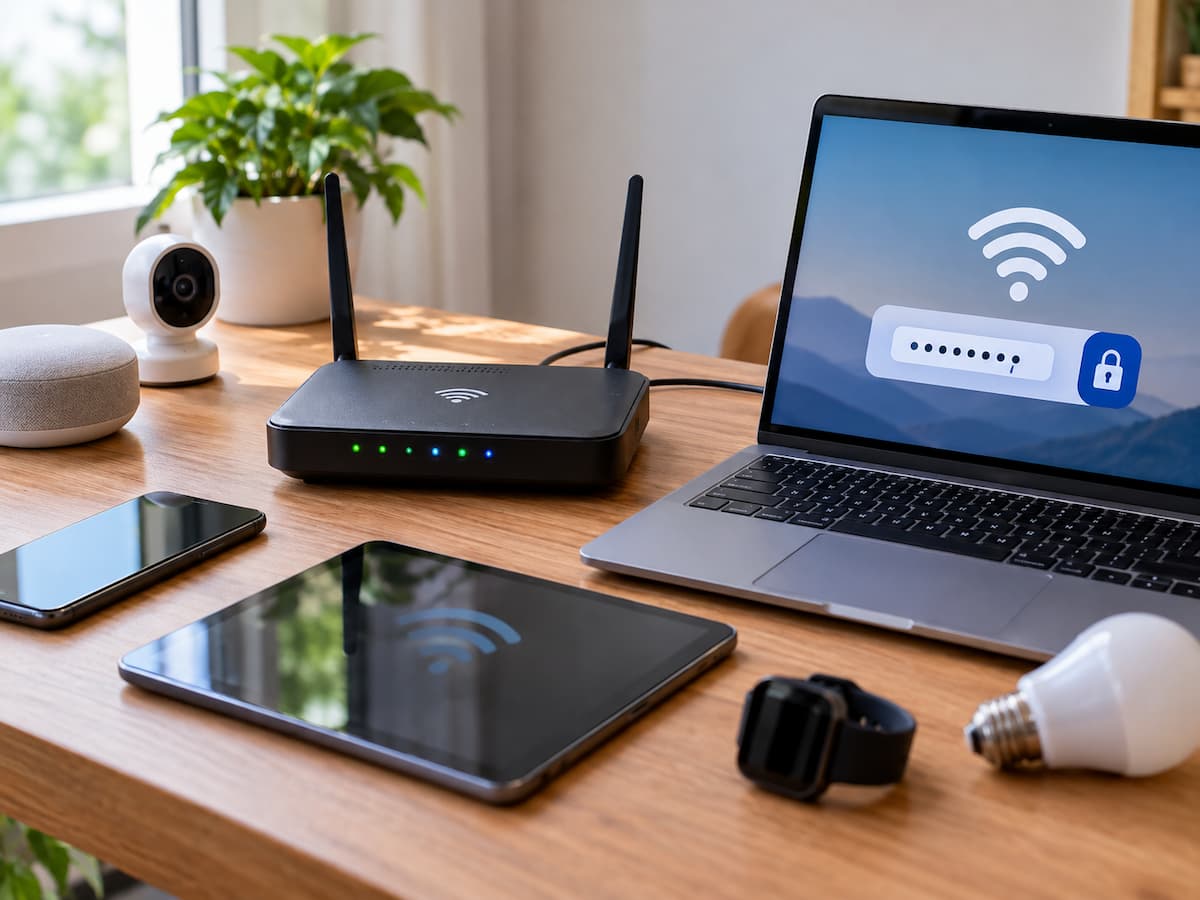
A household Wi-Fi password change often seems like a small maintenance task. You open the router’s settings, enter a new password, save the change, and expect your laptop to reconnect. Then the television stops streaming, the wireless printer disappears, a smart speaker goes offline, and a security camera reports that it cannot connect.
The problem is not necessarily that anything has broken. Each device that relies on the old wireless credentials may need attention, and some devices require a separate setup process before they can reconnect. Meanwhile, other household members may lose access to the same network. The safest approach is to treat a Wi-Fi password change as a planned household network change rather than a single-device task. A short preparation period, a clear reconnection plan, and a final verification check can prevent unnecessary resets and make it easier to identify devices that still need attention.
Stage 1: Understand Exactly What Is Changing
Before opening the router’s settings, identify the change you intend to make. Several network settings sound similar but serve different purposes. Confusing them can create problems that are unrelated to the original task.
Wi-Fi password, network name, and administrator password
A Wi-Fi password is the credential devices use to join a protected wireless network. When you change it, devices that depend on the previous password may no longer be able to authenticate. Some prompt you for the new password, while others continue trying their saved details until you intervene. The network name, also called the SSID, identifies the wireless network in a device’s list of available connections. Changing this name can make the network appear to be a new connection, even if the router and internet service remain the same. Devices may need to select the renamed network and save its credentials again.
The router administrator password protects access to the router’s management interface. It is used to sign in and change network settings, not to connect ordinary devices to Wi-Fi. Changing the Wi-Fi password does not automatically change this administrator password, and changing the administrator password does not automatically change the Wi-Fi password.
Replacing the router is a separate event. A replacement router may have a different network name, password, security configuration, and internal network settings. Even if you reuse the old Wi-Fi name and password, some devices may still require additional setup. For a routine security update, change only the setting you actually need to change. Avoid modifying unrelated settings at the same time, because doing so makes later troubleshooting more difficult.
Stage 2: Identify Every Device That Depends on the Network
The main preparation challenge is remembering equipment that rarely receives attention. Phones and laptops are easy to notice because people use them every day. Other devices may remain connected quietly in the background until a network change interrupts them. Create a short inventory of the equipment that uses your home Wi-Fi. Include devices used by other household members, not just those you personally manage.
| Device category | What to check after the change |
|---|---|
| Phones and computers | Confirm that each device reconnects using the new password. |
| Smart TVs and streaming devices | Test streaming access and check the saved wireless connection if necessary. |
| Wireless printers | Confirm that the printer and the computers or phones sending jobs can communicate. |
| Smart speakers and home automation hubs | Check their connection status and whether the associated app reports them as online. |
| Cameras and connected appliances | Confirm that the device is online and that its app can reach it. |
| Guest devices and household equipment | Contact guests or other users who manage devices that may still use the old credentials. |
Some equipment depends on more than a direct Wi-Fi connection. A smart speaker may connect to the router while also relying on a mobile app or cloud service. A printer may be online but unavailable to a computer that is connected to a different network. A camera may require its manufacturer’s app to complete reconnection. These differences matter because a device that appears offline does not always have a password problem.
Stage 3: Prepare Before the Change
A little preparation can prevent a minor interruption from becoming a long troubleshooting session.
Confirm access to the router.
Make sure you can reach the router’s management interface and sign in with the correct administrator credentials. Depending on the equipment, management may be available through a local web interface, a router manufacturer’s app, or an internet provider’s management tool.
Use the instructions for your particular router model to locate the wireless security settings. Menu names and available options vary, so do not assume that instructions for another model will match your interface. If you cannot access the management interface before the change, resolve that issue first. Otherwise, you may change the password and then discover that you cannot return to the settings to correct a mistake.
Record the information you may need.
Note the current network name and identify the new password you intend to use. Keep the new credential somewhere secure and accessible to the people responsible for reconnecting household devices. Do not leave it on a publicly visible note or share it through an unrestricted group chat.
It is also useful to know the router’s model and where to find its official instructions. If the change causes an unexpected problem, you will have a reliable source for model-specific recovery steps. Next, make a simple checklist of connected devices. You do not need to record every technical detail. Device names and status labels such as “not checked,” “connected,” and “needs attention” are usually enough.
Consider other household users.
Tell household members when the change will take place and provide the new password through an appropriate private channel. Ask whether anyone depends on a work call, online class, remote session, or other activity that should not be interrupted.
Also identify equipment that supports important household functions. If a camera, alarm-related device, medical monitoring connection, or other essential service depends on the network, confirm its recovery procedure before proceeding. If an interruption could affect safety or essential care, postpone the change until a suitable recovery plan is in place.
Stage 4: Choose a Safe Time and Update the Network
The best time to change a Wi-Fi password is when a brief interruption will cause the least disruption and you have enough time to reconnect important equipment. Avoid making the change immediately before a remote meeting, during an online examination, or when household members need uninterrupted access. Do not start just before leaving home if you will be unable to assist with devices that need manual reconnection.
If home monitoring or another essential service depends on Wi-Fi, follow its manufacturer’s guidance for network changes. Some equipment may need to be placed into a setup mode, and certain systems have additional communication paths that should be verified separately. Do not assume that an app reporting a recent status means the equipment is still communicating normally.
Once you are ready, use the following general sequence. The exact controls depend on the router.
- Open the router’s official management interface and sign in with the administrator credentials.
- Locate the wireless network settings for the network you intend to update. Check whether the router broadcasts separate network names for different wireless bands or guest access.
- Confirm which network the household devices actually use. If the router manages multiple wireless networks, changing one does not necessarily update the others.
- Enter the new Wi-Fi password and save the change using the router’s supported process.
- Allow the router to apply the setting. Your current phone or computer may disconnect, so do not interpret that immediate interruption as proof that the router has failed.
- Reconnect a nearby phone or computer to the intended network using the new password, then confirm that internet access works.
Choose a strong, unique password that is difficult to guess and practical to enter accurately. A longer passphrase made from unrelated words can be easier to manage than a short, complicated string. Use a supported wireless security mode recommended by the router manufacturer, and do not weaken security protections simply to make an older device reconnect. At this point, the wireless network should be available with its updated credentials. The remaining work is to restore and verify the devices that depend on it.
Stage 5: Reconnect Devices in a Controlled Order
Start with the devices that matter most to the household. A useful order is to restore essential communication and work devices first, followed by shared entertainment equipment, printers, and smart-home devices.
Phones and computers
Open the device’s Wi-Fi settings and select the correct network. If it asks for a password, enter the new one carefully. Check the network name before joining, particularly if nearby networks have similar names. Some devices will display a password prompt automatically. Others may continue attempting to use the old saved credential. If a device repeatedly fails to join, use its network settings to forget or remove the saved connection, then select the network again and enter the new password.
The wording and location of these controls differ across operating systems and versions. Forgetting a network may also remove other saved connection details, so use this step only when needed rather than deleting every remembered network. After reconnecting, open a website or use another familiar internet-dependent service. Seeing a Wi-Fi symbol alone does not prove that the device has working internet access.
TVs, printers, and smart-home equipment
For a television or streaming device, open its network settings and select the correct network. Test an internet-connected app once the connection is restored. For a wireless printer, check its connection status using the printer’s own controls or supported management software. Then send a small test print from a device that should be able to reach it. If the printer appears connected but cannot be found by a computer, check whether both devices are on the intended network and whether the printer’s own setup instructions identify another issue.
Smart speakers, automation hubs, cameras, and appliances can require more care. Some offer a way to update saved wireless credentials directly. Others require a manufacturer’s app, a temporary setup connection, or a device-specific pairing procedure. Follow the instructions for the exact model. Do not assume that removing a device from its app and adding it again is necessary. Re-enrollment may erase configuration or require account access that is not immediately available.
Stage 6: Diagnose the Failure Before Changing Anything Else
When a device remains offline, first identify the scope of the problem. Check whether other devices can connect, whether the network name is visible, and whether the device reaches Wi-Fi but lacks internet access.
| Symptom | Likely area to investigate | Next step |
|---|---|---|
| One device cannot reconnect | Saved credentials, incorrect network selection, or device-specific settings | Re-enter the new password. If necessary, forget and rejoin the network. |
| Several devices fail at once | Router settings, a failed configuration change, or a router connectivity problem | Check the router’s status and confirm that the intended network is active. |
| The network name is no longer visible | Wireless broadcasting, a router restart, or a changed network name | Check the router’s wireless settings and model-specific status instructions. |
| A device connects to Wi-Fi but has no internet | Router-to-internet connectivity, a device network issue, or a service problem | Test another device and check the router’s internet status. |
| A smart-home device needs its own setup process | Device-specific credential storage or pairing requirements | Follow the manufacturer’s reconnection procedure for that model. |
These symptoms provide clues, not guaranteed diagnoses. For example, a device that joins Wi-Fi without internet access may have a router or service problem rather than an incorrect password. Similarly, a missing network name does not automatically mean the router has failed; the network may have been renamed or its wireless settings may have changed.
If several devices fail immediately after the password update, pause before troubleshooting each one individually. Check the router first. If one device fails while others work normally, focus on that device’s saved connection and compatibility with the current network settings. If the network name is missing, use a device that is already connected if possible, or consult the router’s official recovery instructions. Avoid changing multiple wireless settings at once, because doing so can make the original cause harder to identify.
Stage 7: Follow a Recovery Example Without Losing Track
Consider a fictional household where Sana changes the Wi-Fi password on a Saturday afternoon. Her phone reconnects successfully, but the television stops streaming, the printer cannot be found, and a smart speaker shows an offline status. Instead of resetting everything, Sana works through her device checklist.
First, she marks her phone as connected and confirms that a website opens. Next, she reconnects her laptop using the new password. Both devices now have working internet access, suggesting that the router is operating normally for ordinary clients. She then opens the television’s network settings and joins the same network with the new password. Streaming works again. The printer still cannot be found, so she checks its connection status rather than repeatedly sending print jobs. Its saved wireless details need updating, after which she sends a test page.
Finally, Sana opens the smart speaker’s companion app and checks the device’s status. The app provides a device-specific network update procedure, which she follows. Once the speaker appears online, she tests a simple command. Throughout the process, she records each device as restored or still needing attention. When one device takes longer than expected, she does not repeat steps that have already worked elsewhere. The important lesson is the method, not the order of the devices: check the network, reconnect one device at a time, test the result, and record what remains unresolved.
Stage 8: Avoid Unnecessary Factory Resets
A factory reset is rarely the right first response to a Wi-Fi password change. Resetting a router may erase the network name, wireless credentials, administrator settings, provider-specific configuration, and other settings. Restoring a smart-home device to its factory state may remove pairing information, schedules, or custom preferences. Before considering a reset, confirm the network name, verify the new password, check the router’s status, and try the device’s documented reconnection procedure. If only one device is affected, resetting the entire router is especially unlikely to be the most efficient first step.
Consult official manufacturer documentation when the interface differs from the instructions you have, a device has no obvious way to update its network credentials, or the problem persists after basic checks. Use the documentation for the exact model and, where relevant, its software version. Contact the internet provider or manufacturer if you cannot restore the connection through the supported process. Never share your router administrator password with an unverified support contact, and avoid installing unknown utilities that promise to repair the connection. Use legitimate device settings and official support channels.
Final Verification: Close the Change Only After Testing
A network password change is complete when the devices that matter are confirmed to work, not merely when the router accepts the new password.
Use this final checklist before considering the task finished:
If one device remains offline, do not assume the entire change has failed. Keep track of the unresolved device, consult its official instructions, and investigate its specific connection requirements. A planned password change, followed by systematic reconnection and verification, is usually much easier to manage than resetting equipment without first identifying the problem.