
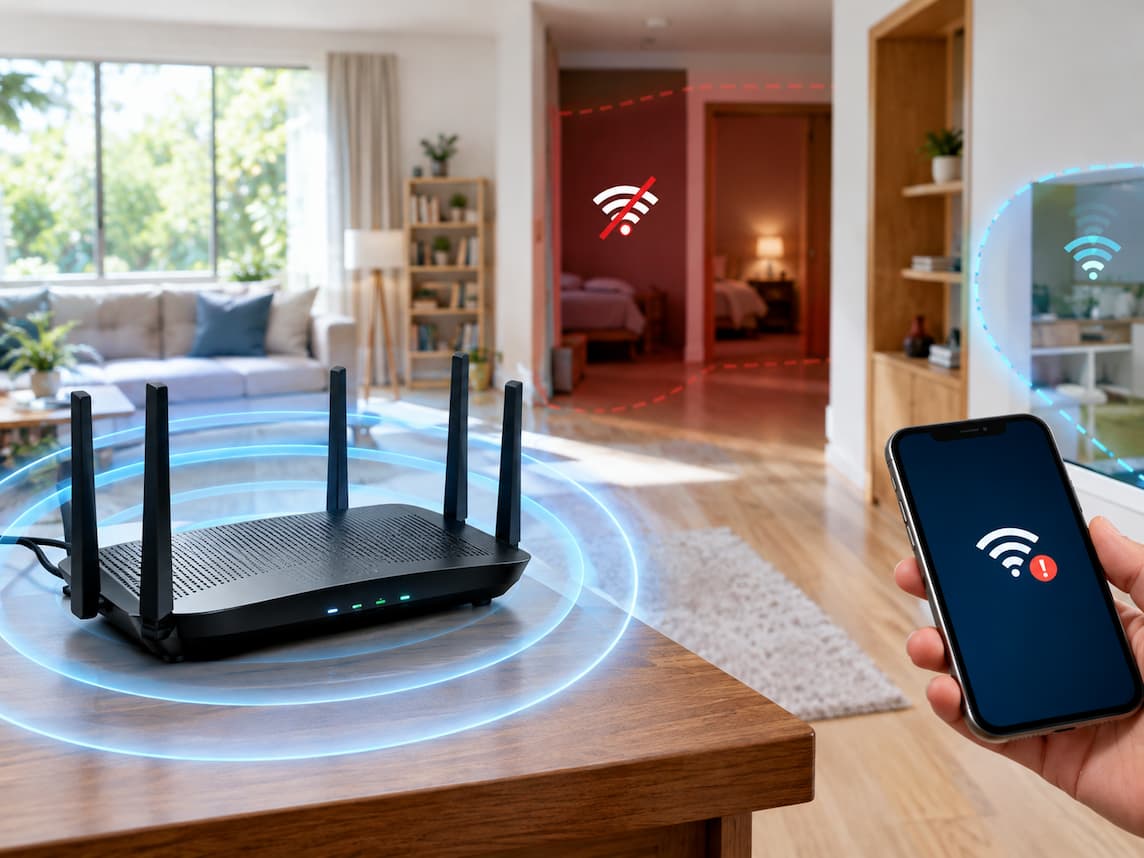
Why Strong Internet in One Room Can Be Weak in Another
A household may have a fast internet connection, a relatively new router, and a frustrating problem: video calls work smoothly in the living room but freeze in a bedroom, downloads slow down upstairs, or a television struggles to stream content from the other side of the house. The obvious response is to buy a larger, more powerful router. That decision may be premature.
A router can deliver a strong wireless connection in one part of a home while struggling to reach another. However, the problem could also involve the internet service itself, interference from nearby networks, a limitation of the affected device, or a router that cannot handle the household’s demands. These causes can produce similar symptoms but require different solutions.
Buying more powerful equipment before identifying the cause can leave the original problem untouched. A better approach is to compare performance in different locations, test more than one device, and determine where the connection begins to fail. The key question is not whether a router is powerful enough in general. It is whether the part of the connection causing trouble can actually be improved by changing the router.
Five Different Causes of Poor Connectivity
Understanding the difference between internet service, wireless coverage, interference, device limitations, and router workload makes the purchasing decision much easier.
1. Broadband Speed Delivered to the Home
Broadband is the internet connection supplied by the internet service provider (ISP). Its performance depends on the service plan, the access technology, network conditions, and any faults affecting the connection. If several devices experience slow downloads at the same time, including a computer connected directly to the router by Ethernet, the problem may be upstream of the wireless network. The internet plan may not meet the household’s needs, the provider may be experiencing congestion, or a service fault may be reducing performance.
A faster router cannot increase the speed supplied by the ISP. Even an advanced mesh system must share the incoming connection unless the underlying service is improved. However, slow performance across the household does not automatically prove that the provider is responsible. The router itself may be overloaded, malfunctioning, or struggling with its connection to the modem or network terminal.
2. Wi-Fi Coverage Inside the Home
Wi-Fi carries data between devices and a wireless access point, usually the router. Its performance changes with distance, obstacles, antenna design, radio conditions, and the capabilities of the communicating devices. A phone beside the router may receive a strong signal, while a laptop several rooms away struggles to maintain a reliable connection. This is a classic coverage problem, particularly when walls, floors, or other obstacles separate the two locations.
The signal does not weaken according to a simple distance rule. A nearby device behind a dense concrete wall can perform worse than a more distant device with a clearer path to the router. When performance consistently deteriorates in particular rooms but remains good near the router, improving signal delivery to those rooms is more promising than immediately upgrading the broadband plan.
3. Wireless Interference and Congestion
A device can receive a usable Wi-Fi signal and still experience poor performance. Other wireless networks, competing transmissions, and certain electronic equipment can affect how efficiently data travels. Congestion can occur when several devices compete for airtime on the same network. Nearby networks can also compete for shared radio resources, depending on their channels, signal levels, and activity.
The effect varies by environment. A microwave oven may interfere with some 2.4 GHz Wi-Fi connections when operating, but it is not necessarily the cause of every intermittent connection. Similarly, changing a Wi-Fi channel may help in a crowded environment but accomplish little if a concrete wall is the main obstacle. The distinction matters because adding another access point without addressing placement or channel conditions may introduce more complexity without producing a meaningful improvement.
4. Limitations of an Individual Device
Sometimes the network is not the main problem. An older laptop, inexpensive smart television, or phone with a damaged antenna may perform poorly while other devices work normally in the same room. Devices differ in supported Wi-Fi bands, radio capabilities, antenna design, software, and power management. A device may also have a driver problem or an application-specific issue.
If one laptop struggles in several locations but another computer works well in those same places, replacing the router should not be the first step. The affected device deserves its own investigation.
5. Router Performance Under Household Workload
A router does more than broadcast a wireless signal. It manages traffic between devices and the internet, maintains connections, and performs other networking tasks. Its practical limits depend on its hardware, software, configuration, and the demands placed on it. A router may struggle when many devices are active, when demanding applications compete for capacity, or when its hardware cannot handle the required traffic efficiently. A faulty power supply, overheating, outdated firmware, or unstable software can also cause problems.
This differs from a coverage issue. If the connection works well when the household is quiet but deteriorates across several rooms whenever many people stream, download, or join video calls, workload or congestion deserves attention. The location of the failure is therefore more informative than the router’s advertised speed alone.
A Practical Method for Finding the Cause
Before purchasing equipment, compare performance under conditions that make the results meaningful. One isolated speed test is not enough to identify the source of a problem.
Step 1: Test More Than One Device
Use two devices if possible, ideally with different hardware. Test them in the same room and, where practical, at approximately the same time. If both devices struggle in the same distant room but perform well near the router, a coverage or local interference problem becomes more likely. If one device performs poorly everywhere while the other remains reliable, investigate the weaker device first. This is not absolute proof. Two devices may have different wireless capabilities, and a temporary service fault can affect them both. The comparison simply helps narrow the possibilities.
Step 2: Compare Near the Router and in the Problem Location
Run the same type of speed test or use the same demanding application near the router, then repeat the test in the affected room. Keep the device, test service, and general conditions as consistent as possible. Record more than download speed. Note whether the connection disconnects, whether video calls freeze, whether upload performance suffers, and whether delays occur when opening websites. A connection can deliver a reasonable download rate yet still feel unreliable because of packet loss, high latency, or sudden variation in response times. If the problem appears only in a particular room, repeat the test at different times. A temporary improvement does not necessarily mean the issue has disappeared, particularly when wireless congestion varies throughout the day.
Step 3: Check the Wired Connection
If the router has an available Ethernet port and a suitable computer, connect the computer directly to the router using a compatible Ethernet cable. Disable Wi-Fi on that computer during the test so that traffic uses the wired connection. If wired performance is also poor, investigate the broadband service, router, modem, or other upstream equipment. Contacting the ISP may be appropriate if basic checks do not reveal a local cause. If wired performance is good but Wi-Fi is poor, the wireless side deserves closer attention. This could mean coverage, interference, device limitations, or wireless-specific router problems. A good wired test does not guarantee that the ISP is fault-free, and a poor test does not automatically establish provider responsibility. Repeat the test and compare it with the service plan and any known provider issues.
Step 4: Change One Variable at a Time
Move the router to a more open, central position if its current location is poor. Retest the same devices in the same locations. If the problem continues, check for relevant firmware updates and review the router’s configuration. If supported by the equipment, testing a less congested wireless channel or a different Wi-Fi band may help distinguish interference from other causes. Avoid changing several settings at once. If performance improves, you want to know which change mattered. If it worsens, you should be able to restore the previous configuration. This process produces evidence for the next decision instead of turning troubleshooting into a series of guesses.
Why Router Placement Can Matter More Than Router Size
A router hidden inside a cabinet, placed behind a television, or positioned at one end of a large home may provide uneven coverage. Moving it into a more open location can improve the path between the router and devices without requiring new equipment. Building materials matter, but their effects depend on the home. Dense concrete, brick, metal surfaces, and reinforced structures can weaken or obstruct wireless signals. Floors and walls may create additional losses, especially when several obstacles lie between the router and a device.
A large open room may be easy to cover, while a smaller home with thick internal walls may be more challenging. The number of rooms alone is not a reliable measure of the coverage required. Nearby wireless networks and other radio sources may also affect performance. Yet these factors should be investigated when the evidence points toward interference rather than treated as automatic explanations. Placement is worth testing early because it costs little and can reveal whether the existing router is capable of serving the home more effectively. It will not, however, repair a faulty broadband line or overcome every difficult building layout.
Which Solution Fits the Evidence?
The best remedy depends on what the tests reveal. Each option has a different purpose and a different limit.
| Option | When It Makes Sense | Main Limitation | What It Will Not Fix |
|---|---|---|---|
| Reposition the existing router | Coverage is uneven and the current location is obstructed or poorly placed. | The best location may not be near the incoming internet connection or available power and cabling. | A slow broadband plan or faulty service line. |
| Update or adjust existing equipment | Evidence suggests a software fault, unsuitable setting, interference, or a correctable configuration issue. | Results depend on the cause and the router’s available features. | A genuine hardware limitation or inadequate incoming service. |
| Add a Wi-Fi extender | One area has weak coverage and a suitable intermediate location can receive a reliable signal. | The extended connection may be slower or less consistent than the original connection. | A slow internet connection or a poor signal at the extender itself. |
| Install a mesh Wi-Fi system | Several areas need coverage and one router cannot serve the layout reliably. | Additional cost, node placement, setup, and backhaul requirements. | A broadband bottleneck or every possible source of interference. |
| Replace the router | Hardware, security support, reliability, or capacity is demonstrably inadequate. | A new router may not improve the specific weakness that prompted the purchase. | Poor broadband service or obstacles that still prevent adequate signal delivery. |
| Contact the ISP | Wired and wireless tests suggest a service fault, or performance consistently falls below the expected service level. | The provider may need further testing before identifying the fault. | A purely local Wi-Fi dead zone unless the provider’s equipment or installation is involved. |
The table is a starting point, not a set of guaranteed outcomes. Some households have more than one problem, so the right response may combine two measures rather than rely on a single purchase.
Extenders and Mesh Systems: Similar Goal, Different Trade-Offs
Both extenders and mesh systems can help distribute Wi-Fi beyond the area served reliably by a single router, but they operate differently. A conventional Wi-Fi extender receives a wireless signal and relays it into another area. Its position is critical. Placing it inside the dead zone may leave it with a weak connection to the router, so it simply repeats a poor signal. A more useful position is often between the router and the affected room, where it can receive a sufficiently reliable connection while still reaching the target area.
Depending on the model and configuration, an extender may create a separate network name or support roaming arrangements with the existing network. Device compatibility and handoff behavior can affect the experience. Relaying traffic over wireless can also consume airtime and reduce available performance, although the exact impact varies by equipment and radio design.
A mesh system uses multiple nodes designed to operate together as a coordinated network. One node connects to the main router or modem, depending on the system, while other nodes extend coverage. A well-positioned mesh system can offer more consistent coverage across a complicated layout than a single access point.
However, mesh is not automatically faster. Nodes need a reliable connection to one another, often called backhaul. With wireless backhaul, the nodes use Wi-Fi to carry traffic between themselves. Walls, interference, and distance can weaken this connection, even when a node appears close to the device it serves. Some mesh systems support wired backhaul, where Ethernet carries traffic between nodes. Where supported and practical, this can reduce reliance on wireless links between nodes. It may require suitable cabling, compatible equipment, and additional installation work.
Compatibility also matters. A mesh kit may be designed to replace an existing router, operate in an access-point mode, or work with a separate router under certain configurations. Some arrangements can create unnecessary networking complications if configured incorrectly. Check the manufacturer’s documentation before combining systems. The decision is straightforward in principle: an extender may be sufficient for one isolated weak area, while mesh may be more suitable when several rooms or floors need coordinated coverage. Neither option should be purchased on the assumption that more devices automatically mean more speed.
When Replacing the Router Is Justified
Router replacement makes sense when there is evidence that the existing equipment cannot meet the household’s requirements. Age alone is not a reliable reason to upgrade. A well-supported older router may continue to work adequately, while a newer device can still be unsuitable for a particular layout or workload.
Several findings can justify replacement:
- Documented hardware limits: The router lacks necessary Ethernet ports, wireless capabilities, or processing capacity for the intended use.
- Security support has ended: The manufacturer no longer provides necessary security updates, and the device cannot maintain an acceptable security configuration.
- Persistent instability: Connections continue dropping or the router repeatedly becomes unresponsive after reasonable troubleshooting, firmware checks, and configuration review.
- A genuine capacity mismatch: The router cannot reliably handle the household’s required devices, traffic, or internet service, even when coverage and configuration are adequate.
Before replacing it, check the manufacturer’s support information and confirm that the proposed equipment addresses the identified limitation. For example, a router with better wireless capabilities may help compatible devices, but it will not necessarily improve performance through several dense walls. Also check whether the ISP supplies a combined modem-router or optical network terminal with built-in Wi-Fi. Depending on the service, replacing the provider’s equipment may require compatibility checks or a particular configuration. A separate access point or mesh system might be more appropriate than replacing the entire installation.
For practical guidance on router positioning, home layout, channel congestion, and wireless settings, Microsoft’s documentation on Wi-Fi and your home layout provides a useful starting point. Equipment-specific limitations should be checked against the relevant manufacturer’s documentation.
Worked Example: A Home With One Persistent Dead Zone
Consider a fictional two-storey home where the family reports that internet access works well in the downstairs living room but frequently stalls in an upstairs bedroom. The owner assumes the router is too small and begins considering a more expensive replacement. Instead of purchasing immediately, the owner compares the evidence.
First, two different devices are tested beside the router. Both perform reliably. The same devices are then tested in the upstairs bedroom, where both show weaker and less consistent performance. This makes a problem limited to one device less likely. Next, a computer connected to the router by Ethernet performs reliably during the same general period. That result suggests the incoming broadband connection is not the leading suspect, although it does not rule out every intermittent service problem.
The owner then moves the existing router from a low shelf beside other equipment to a more open position. Performance improves in several areas, but the upstairs bedroom remains unreliable. The layout includes a floor and multiple walls between the router and the bedroom, so the remaining problem is consistent with a coverage limitation.
At this point, buying a more powerful router is only one possible response. The owner has three reasonable options.
- Option one: Keep the existing router. If the bedroom is used occasionally and the improved connection is sufficient, no purchase may be necessary. The remaining weakness may not justify the expense of additional equipment.
- Option two: Test an extender. If a suitable location between the router and bedroom receives a reliable signal, an extender may provide enough coverage. The owner should assess performance in the bedroom after installation rather than assume that the additional device will solve everything.
- Option three: Consider mesh. If the upstairs bedroom and several other rooms remain poorly served, a mesh system may be more practical. The owner should evaluate node placement and whether wired backhaul is feasible, especially if the building’s layout makes wireless links unreliable.
The evidence supports improving coverage rather than upgrading the broadband plan. It does not yet establish whether an extender or mesh will provide the better result. That decision depends on the number of affected rooms, available placement options, cabling, cost, and the performance achieved after setup. The important outcome is that the owner has narrowed the problem before spending money. The final purchase, if one is needed, follows from the observed limitation rather than the assumption that a bigger router must be better.
A Final Decision Guide
Use the pattern of the problem to decide what to investigate next.
- If every room is slow, including near the router: Compare wired and wireless performance. If wired performance is also poor, investigate the broadband service, modem or network terminal, router workload, and possible equipment faults. Contact the ISP when the evidence points toward the incoming connection.
- If nearby devices work well but distant rooms struggle: Investigate router placement, physical obstacles, local interference, and coverage. Test repositioning first, then consider an extender or mesh system if the weakness remains.
- If only one device has problems: Test another device in the same location. Check the affected device’s Wi-Fi capabilities, software, drivers, and network settings before replacing the router.
- If performance deteriorates mainly during busy periods: Look for household traffic competing for capacity, wireless congestion, and router performance limits. A faster broadband plan may help if the incoming connection is the bottleneck, but it will not necessarily resolve a congested or weak wireless link.
- If connections drop repeatedly despite good signal strength: Investigate firmware, interference, router stability, and the device’s connection. If suitable tests indicate a service fault, involve the ISP.
- If the existing router has a confirmed limitation or unsupported security features: Compare replacement options that directly address that limitation, including compatibility with the current internet service and other network equipment.
A reliable Wi-Fi decision starts with locating the failure, not selecting the biggest device. A simple comparison of devices, rooms, and wired performance can distinguish several common causes and prevent unnecessary spending. Sometimes moving the existing router is enough. Sometimes a coverage system is justified, and sometimes the real solution lies with the device, router hardware, or broadband provider. The right upgrade is the one that solves the demonstrated problem while leaving the rest of a working network alone.
FAQs
1. Why is my Wi-Fi fast in one room but slow in another?
Wi-Fi signals can weaken as they pass through walls, floors, and other obstacles. Router placement, building materials, and nearby wireless networks can also affect performance. If multiple devices work well near the router but struggle in the same distant room, a coverage problem is more likely than a slow broadband connection.
2. Will buying a more powerful router eliminate Wi-Fi dead zones?
Not necessarily. A router with better wireless capabilities may improve coverage, but the result depends on the building layout, interference, and connected devices. Repositioning the existing router or adding an appropriately placed extender or mesh node may be more effective than replacing it.
3. How can I tell whether my router or internet provider is causing slow speeds?
Compare Wi-Fi performance near the router with performance through a wired Ethernet connection, if available. If both are consistently slow, investigate the router, modem, and broadband service. If wired performance is good but Wi-Fi remains poor, focus on wireless coverage, interference, and device limitations.
4. Should I choose a Wi-Fi extender or a mesh system?
An extender may suit a single weak area if it can receive a reliable signal from the existing router. A mesh system may be more suitable when several rooms or floors need coordinated coverage. Both depend on placement and connection quality, and neither can automatically improve a slow incoming broadband connection.
5. When should I replace my existing Wi-Fi router?
Consider replacement when the router has confirmed hardware limitations, lacks necessary security support, repeatedly fails despite troubleshooting, or cannot reliably handle your household’s requirements. Before buying, identify the specific limitation and check whether the replacement will address it. A new router will not necessarily solve problems caused by the ISP, building obstacles, or an individual device.