
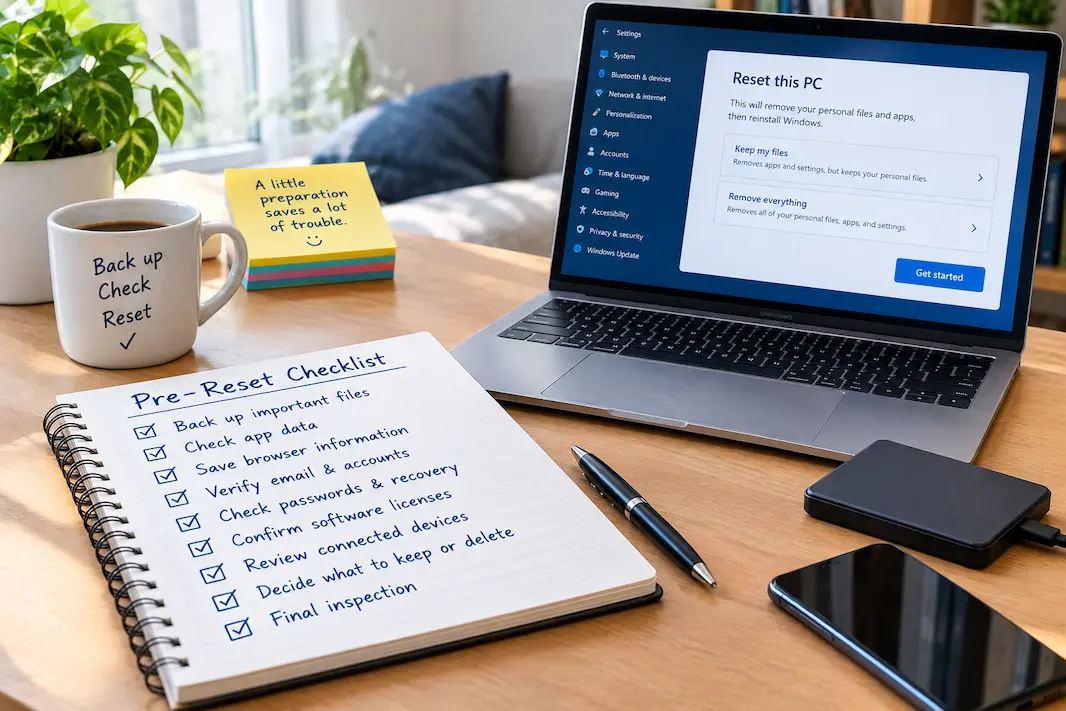
People often think that resetting their computer is a simple cleanup method: just click the ‘Reset’ button, wait for the process to finish, and start fresh with a clean computer. In most cases, the reset itself isn’t difficult. The real danger lies in what you do *before* pressing that button.
Photos, downloads, documents, browser data, application data, saved login credentials, license information, and files you may not even remember creating can all be stored on your computer for years. Some of this data may be backed up elsewhere, while other parts exist only on that specific computer. Once a reset wipes local data, what should have been a simple cleanup can turn into a data recovery issue if you forget to restore certain information.
A safer approach is to view the reset as the final step in a verification process, rather than the first step of the cleanup.
Determine Why You Want to Reset Your Computer
Consider your goals before you start reviewing individual files. Resetting your computer because it is cluttered with programs is different from resetting it before selling or giving it away, fixing persistent software issues, or reinstalling the system for your own use.
The reason for the reset is crucial, as it affects how you handle the process. If you plan to keep the computer, you might want to preserve certain programs, settings, and files before resetting. If you are giving the computer to someone else, it is vital to completely remove all accounts and data. When troubleshooting, you should also consider whether a reset is truly necessary, to avoid disrupting your current settings.
A reset should solve a specific problem or prepare your computer for a specific task. If you cannot explain why you need to reset, then don’t do it. Take the time to think about the problem first.
Find The Files That Are Easy To Miss
The obvious personal folders are usually the easiest to remember. The forgotten material tends to be elsewhere.
Start with the folders you regularly use for documents, pictures, videos, and downloads, but don’t stop there. Look for files saved directly to the desktop, files sitting in temporary project folders, exported documents, scanned paperwork, old installation files that contain useful information, and folders created by applications you have used over the years.
Downloads deserve particular attention because many people use that folder as temporary storage and then forget about it. An old invoice, warranty document, tax-related file, contract, photograph, or work attachment can remain there for years without being opened.
If you want a structured way to review that folder before the reset, the Downloads Folder Audit Worksheet can help you decide which items should be kept, archived, backed up, or removed.
Don’t Assume A File Is Safe Because You Remember Seeing It Elsewhere
A common mistake is assuming that a file exists in the cloud simply because it was once uploaded there.
Open the relevant cloud service and verify the actual files you care about. If possible, open several older documents and photographs rather than checking only whether the folder exists. A synchronized folder can contain recent material while older files remain exclusively on the computer.
The same principle applies to external drives and backup disks. A backup is useful only if the information you need is actually present and readable.
Check Application Data Separately
You may back up your documents completely, but application data often remains on your computer.
You may need to check software that stores items such as notes, design files, projects, databases, locally stored emails, browser configuration files, game saves, and other documents located in non-standard folders. Different applications use various automatic synchronization methods, while others employ their own export or backup processes.
Make a list of programs where the loss of local data would have serious consequences. Identify these key programs and determine where their data is stored. Before restarting your computer, perform any export, backup, or synchronization operations supported by the applications.
Also, take this opportunity to separate programs from the data they contain. While many applications can be reinstalled later, they may not be able to help you recover the work or personal data stored within them.
Review Browser Information Before Starting Fresh
Browsers often store more useful data than most people realize.
Check your saved passwords, bookmarks, accounts, reading lists, sessions, and any other browser-specific data you truly need. If synchronization is enabled, ensure you are using the correct account and can access important data from other devices or via that account. You do not need to keep hundreds of old tabs; in fact, restarting your browser is an excellent time to clear out unnecessary browsing clutter. It is crucial to distinguish between content you do not need and content you would regret losing later. If you have saved links or bookmarks that you haven’t looked at for years but still need occasionally, move them to a better-organized system before restarting your browser.
Don’t Forget Email And Local Mail Data
Modern email accounts are often stored in the cloud, but not all of them are. That is why emails require extra attention.
If you use a desktop email client, check whether it stores downloaded emails, archived emails, attachments, contacts, or other data that isn’t fully stored on your email provider’s servers. This is especially important for older accounts and work environments, as they may store emails locally.
You can verify whether the emails you need are saved by opening your email program on another device or via a web browser. If you have locally archived emails, locate the storage folder and create a separate backup of it.
It is never pleasant to discover—after restarting your computer—that an old file existed only on that machine.
Check Passwords, Recovery Information, And Authentication
If you are resetting your computer, ensure that you will still have access to your important accounts afterward.
Check your password manager to ensure it has been backed up or synchronized. Carefully verify your login credentials for critical services such as your primary email, cloud storage, banking, work accounts, and other services that might be difficult to recover.
Authentication requires special attention. If an account uses device-specific methods—such as security keys, recovery codes, or authentication apps—make sure you have alternative login methods available before resetting your computer.
Even when setting up a new computer, you do not need to memorize every password. The most important thing is ensuring the reset does not lock you out of your important accounts.
Check Software Licenses And Activation Details
If you plan to use your computer again, check which software might need to be reactivated after the reset.
Some applications have account-linked licenses that allow for easy redownloading. Others may require product keys, license details, subscription accounts, or specific installation procedures.
Make a list of software that is expensive or difficult to replace. Ensure you know how to reinstall it and that you still have the necessary account or license information.
This is particularly useful for proprietary software installed years ago that you rarely think about. If you cannot restore the necessary programs, even a fresh computer won’t help.
Check Connected Devices and Specialized Hardware
Resetting printers and other common peripherals is usually straightforward, but specialized devices can be more challenging. Think of scanners, audio equipment, cameras, graphics tablets, network devices, and other hardware that requires specific software or drivers to function. If your computer stops working, it is crucial to know how to get it up and running again for specific tasks.
If you plan to keep the computer, save any installation details that might be needed. This information may not be important if you are giving the computer away, unless you expect the recipient to use the hardware immediately.
Decide What Happens To The Old Files
Don’t use the reset process as a substitute for deciding what you actually want to keep.
If the computer contains years of mixed files, separate the important information before wiping it. A simple system such as Keep, Archive, Back Up, and Delete can make the decision easier. The important part is to verify anything you intend to delete rather than assuming that an old-looking file is worthless.
The Keep, Archive, Back Up, Delete Decision Helper can be useful when you are unsure whether a file belongs in your active storage, archive, backup, or deletion pile.
The biggest mistake is deleting first and deciding later.
Verify The Backup Instead Of Trusting The Backup Message
A backup notification is not the same thing as a verified backup.
If you have copied important files to another drive or cloud storage, open the destination and check several files. Try different types of information: an older photograph, a document, a spreadsheet, a video, and anything particularly important to you.
If the backup exists on an external drive, make sure the drive itself can still be opened and the files are readable. If you have more than one important location, compare them where practical.
You don’t need to perform a forensic audit of every byte. You simply want enough evidence to know that the information you are about to remove is available somewhere you can actually access.
If Someone Else Will Get The Computer, The Checks Change
A computer being reset for your own reuse is different from one being sold, donated, returned, or handed to another person.
In the second situation, your objective is not merely to reinstall the operating system. You also need to make sure personal accounts and data are no longer associated with the machine. Sign out of relevant accounts, remove the device from account or device-management lists where appropriate, and follow the operating system’s current reset and data-erasure process.
Don’t manually delete a few folders and assume that the computer is ready for someone else. Personal information can exist in many locations, including browsers, applications, cached data, and account connections.
For the complete handover stage, the Old Device Handover Checklist provides a separate sequence for preparing a computer before it leaves your possession.
Give Yourself One Final Inspection
Once everything important has been backed up and account access has been checked, perform one last slow inspection of the computer.
Look at the desktop, Downloads folder, documents, pictures, videos, browser, important applications, external drives, and any unusual folders you recognize. Think about what you have used the computer for during the last few years rather than only what you used last week.
This final inspection often catches the things that structured checklists miss because they are specific to the individual computer. Maybe you stored a folder under the name of a project rather than under Documents. Maybe an old application created its own storage location. Maybe an important scan is sitting on the desktop because you intended to organize it later.
Those small discoveries are exactly why the final inspection should happen before the reset, not after it.
A Simple Pre-Reset Check
| Area | Check Before Resetting | Priority |
|---|---|---|
| Personal files | Documents, photos, videos and desktop files reviewed | High |
| Downloads | Important downloads identified and preserved | High |
| Application data | Important local projects, notes and archives checked | High |
| Browser | Bookmarks, credentials and important information verified | High |
| Cloud mail and local archives checked | High | |
| Passwords | Password manager and important account access confirmed | High |
| Authentication | Recovery methods available after reset | High |
| Backups | Important files opened and verified at destination | High |
| Software | Important licenses and reinstall information available | Medium |
| Hardware | Special drivers or setup information identified | Medium |
| Accounts | Personal accounts prepared for the reset | High |
| Final inspection | Desktop and less-obvious folders reviewed | High |
The Reset Should Be The Last Decision
A computer reset can be an excellent way to start over, but it should not be treated as a shortcut around digital organization. The reset removes the old environment; it does not decide which information was valuable, where your backups are, or how you will regain access to your accounts afterward.
If you are resetting because the computer has become difficult to manage, consider organizing the important information first. The Personal Digital Filing System Worksheet can help you establish a sensible structure before putting files back onto the freshly reset machine.
Once the important data is preserved, the backup has been verified, account access is secure, and you have decided what happens to the computer afterward, the reset becomes a much simpler step. The objective is not to preserve everything. It is to make sure that nothing important is lost simply because you assumed it was somewhere else.
Frequently Asked Questions
Should I back up everything before resetting my computer?
You should preserve anything you may need again, but that does not necessarily mean copying every temporary file and piece of clutter. Focus on personal files, important application data, account information, local archives, and anything that would be difficult to recreate. Afterward, you can deliberately leave obsolete material behind.
Is a cloud backup enough before a computer reset?
It can be, provided the important information is actually synchronized or backed up and you can access it independently. Open the cloud storage and verify several important files before resetting. Do not rely solely on an assumption that synchronization happened correctly.
What is the most commonly forgotten information before a reset?
Downloads, locally stored application data, browser information, old email archives, authentication methods, and files saved outside the usual Documents or Pictures folders are common areas to overlook. The exact risk depends on how the computer has been used.
Should I reset a computer if I am giving it to someone else?
If you are transferring ownership, you should properly remove your personal accounts and data and use the operating system’s appropriate reset or data-erasure process. Simply deleting your visible files is not a sufficient preparation for handing a computer to another person.
How do I know when it is safe to reset the computer?
You are ready when you have identified the information you want to keep, verified that important backups are accessible, confirmed that you can regain access to important accounts, and checked the less-obvious locations where personal data may exist. At that point, the reset is no longer a leap of faith; it is the final step in a process you have already verified.