
The most useful first step is to determine whether the permission is actually missing, whether the operating system is limiting access, or whether the app is failing to recognize a permission that remains enabled. Each situation calls for a different solution, and most can be investigated without resetting your phone or reinstalling the app.
What Happens When You Grant an App Permission?
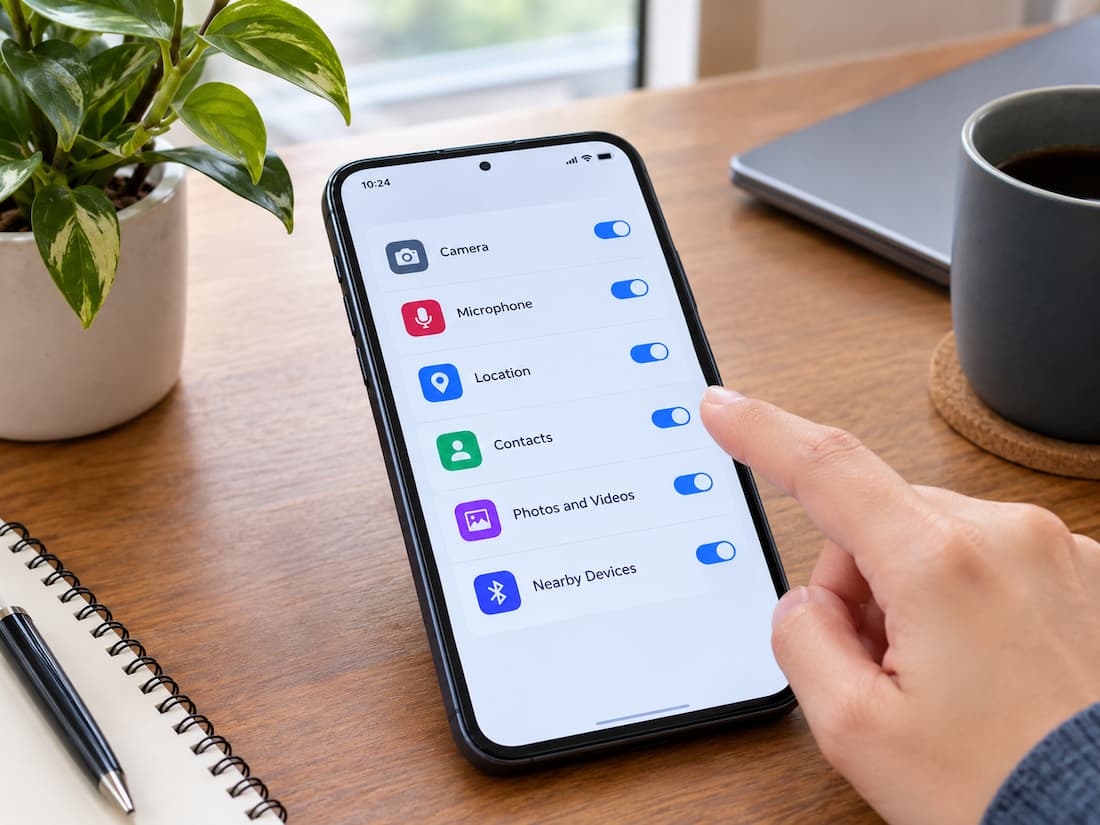
A permission allows an app to access a particular device feature or type of information under the conditions set by the operating system. Depending on your phone, these permissions may cover the camera, microphone, location, contacts, photos, notifications, or nearby devices. When you approve a request, your phone records that decision. However, approval does not always provide unlimited or permanent access. The exact effect depends on the permission, the operating system, the app’s implementation, and the options available when you grant access.
Three different situations are worth separating.
- First, the app may be requesting permission again. This can happen when the operating system considers a new permission request necessary, such as after an app is reinstalled or its permission state changes. The app may also display its own explanation or prompt before asking the operating system for access.
- Second, the permission may no longer be granted. A user could have changed it accidentally, an app’s data could have been cleared, or an unused-app privacy feature could have revoked access. In these cases, checking the current permission status is more useful than repeatedly tapping Allow.
- Third, access may be restricted even though some permission setting appears enabled. For example, Android has a system-wide camera access control that can block camera use, independently of an individual app’s camera permission. Similarly, allowing an app to access selected photos on an iPhone does not necessarily give it access to the entire photo library.
These differences explain why approving a request repeatedly may not resolve the underlying problem.
Why Previously Granted Permissions May Be Requested Again
Several causes can produce similar symptoms. The timing of the prompt is often the best clue to which explanation deserves attention first.
The app was reinstalled, or its data was cleared.
Reinstalling an app can change its permission state. When an app is removed and installed again, its previous local settings may not be restored in the same way. As a result, the operating system may treat a later request as a new permission decision. Clearing app data can have a similar effect on Android. This action removes the app’s local data and settings, potentially including information used to remember onboarding choices or explain previously granted access. The exact result depends on the app and the type of data involved.
Clearing an app’s cache is different. A cache normally contains temporary files, so clearing it is not expected to revoke permissions by itself. If the prompt returns after a cache cleanup, investigate other changes made at the same time rather than assuming the cache caused it. Before reinstalling an app to fix repeated prompts, check its current permissions. Reinstallation is not a reliable first-line solution because it can remove useful local data without addressing the actual problem.
An Operating-System Update Changed the Situation
System updates can affect how apps interact with privacy controls. Android versions introduce or change permission options, and some older apps may behave differently on newer versions. Apple also changes privacy features and access controls across iOS releases.
However, an operating-system update does not automatically mean every previously granted permission has been revoked. The outcome depends on the update, the permission involved, and the app’s compatibility. If the problem began immediately after an update, check whether the relevant permission is still enabled and whether the app has an available update. Also look for changes to privacy controls that could restrict access independently of the app’s individual permission.
Permission Settings Were Changed
A permission can be revoked manually, either accidentally or intentionally. It may also be changed while investigating another issue, cleaning up apps, or reviewing privacy settings. The effect can vary by permission. For example, an app might have location access only while in use, while another permission may have a one-time approval option. On an iPhone, photo access may be limited to selected items instead of the entire library.
An app that expects broader access may repeatedly ask for it when a particular feature is used. That does not necessarily mean your earlier choice was ignored. You may have approved a narrower form of access than the app needs for that specific operation.
The Phone Automatically Revoked Unused App Permissions
Some Android devices can reset permissions for apps that have not been used for a while. Android’s unused-app permission reset feature can revoke certain sensitive permissions automatically. The exact behavior depends on the Android version and app eligibility. This can explain a prompt that appears after an app has been left unused for an extended period. The app may have worked normally the last time you opened it, but the operating system may no longer allow the same access.
Check the app’s information page for options such as pausing app activity when unused or removing permissions if unused. Names and availability vary by Android version and manufacturer. iPhone also has privacy controls, but you should not assume that Android’s unused-app permission reset works identically on iOS. If an iPhone app starts requesting access again, investigate its current permission status and any relevant privacy settings rather than assuming inactivity caused a reset.
You Are Using a Different Account, Profile, or App Installation
Not every repeated prompt comes from a change to the permission itself. You may be opening a work-profile version of an app, a cloned app provided by a device manufacturer, or a separate installation with its own settings. Android work profiles can separate applications and data from the personal profile. Some manufacturers also provide features that duplicate apps for separate accounts. A permission granted to one installation should not be assumed to apply to another.
Account changes can also affect app-specific settings or the way an app handles its features. However, changing an account does not universally reset the operating system’s permissions. If the prompt appears only in a second profile or app instance, check that exact installation instead of changing settings for the original one.
How to Check the Permission Your Phone Currently Allows
Before troubleshooting further, inspect the permission directly in system settings. This helps establish whether the operating system currently grants access, rather than relying on what the app remembers or displays.
On Android
Open Settings, then look for Apps or Apps and Notifications, depending on your device. Select the affected app and open Permissions. Review the permission that matches the feature you are trying to use. For example, check Camera for a camera problem, Microphone for recording difficulties, or Photos and videos for media access. Some devices group related permissions differently, so the wording may not match these examples exactly.
You can also look for a permission manager under Privacy or Security and Privacy. This view may help you identify which apps have access to a particular category of information. If the permission is denied, choose an appropriate access option based on how you use the app. For a camera feature that is needed only when taking a picture, access while the app is in use may be sufficient.
If the permission already appears allowed, do not keep changing it immediately. Check the system-wide privacy controls and test whether the app’s problem occurs only when a specific feature is activated.
On iPhone
Open Settings, scroll to the affected app, and review the available permission controls. You can also open Settings > Privacy & Security and select a category such as Camera, Microphone, Contacts, or Photos. Review the app’s current access and make sure it matches what you intend to allow. For Photos, pay attention to whether access is limited to selected photos or broader library access. For location, review the available location-access options.
Menu names and available controls can differ between iOS versions. If a permission category does not list the app, the app may not have requested that type of access, may not support it in its current form, or may handle the feature differently.
Once you have checked the setting, return to the app and test the exact feature that produced the prompt.
Diagnose the Problem From the Symptoms
The point at which the request appears often tells you more than the wording of the prompt itself. Use the following table to narrow down the cause before making changes.
| Observed symptom | Possible cause | Sensible next check |
|---|---|---|
| The prompt appears every time the app opens. | Permission is not being saved, a custom app prompt repeats, or access is being restricted. | Check system permissions and whether the prompt is from the app or the operating system |
| The prompt returns after an update or reinstall | Permission state changed, or the app handles permissions differently after the change | Inspect current permissions and install any compatible app update |
| The app works until a particular feature is used | That feature requests a separate permission or broader access | Identify the feature and inspect its specific permission |
| Permission appears enabled, but the feature still fails | A system-wide privacy control, app bug, service issue, or technical failure | Check device privacy controls, test another app, and review software updates |
| The prompt returns after a long period without using the app | Automatic permission revocation may apply on Android | Check unused-app settings and the current permission status |
These are diagnostic clues, not proof of a particular cause. For example, a prompt after an update could reflect an app bug rather than a permission change. Continue testing until you can distinguish between the possibilities.
Troubleshooting Four Common Permission Problems
The Prompt Appears Every Time the App Opens
First, determine whether you are seeing an operating-system permission dialog or a message created by the app itself. System dialogs normally provide access choices controlled by Android or iOS. An app-created message may explain why a feature needs access and then direct you to system settings.
If the operating system asks every time, inspect the current permission status and note which option you select. Some permissions support one-time approval, so the app may legitimately need permission again later. If you have selected an appropriate persistent access option and the same system prompt returns immediately on every launch, the app may not be handling permission status correctly. Update the app, close and reopen it, and test again.
If the setting repeatedly changes back without your intervention, investigate any unused-app controls or device-specific privacy features before assuming the phone is malfunctioning.
The Prompt Returns After an Update or Reinstall
Check the app’s permissions first. If access is now denied, restore only the permissions you need. If the permission remains enabled, the app update may have introduced a bug or changed how the app requests access. Check whether another app update is available and whether the developer has acknowledged a related problem.
If the issue began after reinstalling, consider whether you installed a different version or a separate app instance. Avoid clearing data or reinstalling again until you have ruled out these simpler explanations.
The App Works Until a Particular Feature Is Used
This pattern often points to a permission associated with that feature rather than a general problem with the app. A messaging app, for example, may let you type and send text without camera access, but ask for the camera when you try to take a picture inside the conversation. A mapping app may show a map without precise location access but request it when you use navigation based on your current position.
Identify exactly what you were doing when the request appeared. Then review the relevant permission and decide whether the feature genuinely needs it. If the feature works after the permission is granted but another unrelated feature continues to fail, troubleshoot that second feature separately. One successful permission approval does not rule out a different technical problem.
The Permission Is Enabled, but the Feature Still Fails
An enabled permission is necessary for some operations, but it may not be sufficient. On Android, check whether a system-wide camera or microphone access control is disabled. Also consider whether Location is turned off or whether the feature depends on an internet connection or another system service.
On iPhone, review the relevant privacy setting and check whether the permission is limited. For example, selected-photo access may explain why an app cannot see every image in your library even though photo access is enabled. You should also test whether the same hardware feature works in another trusted app. If the camera fails in several apps, the problem may involve the device or a system service. If it fails only in one app, an app-specific bug or compatibility problem becomes more likely.
A Safe Troubleshooting Sequence
Work through these checks in order, stopping when the issue is resolved. This approach avoids unnecessary changes to settings and personal data.
- Record the exact prompt. Note which permission is requested, which app displays it, and whether it appears at launch or after a particular action. If the wording is unclear, a screenshot can help you identify the type of request.
- Check the current permission in Settings. Confirm whether access is allowed, denied, limited, or available only under certain conditions. Change it only if the current choice prevents a feature you actually want to use.
- Review related privacy controls. Check system-wide camera or microphone controls, location settings, selected-photo access, and unused-app permission settings where relevant. Do not assume these controls exist or work the same way on every device.
- Close and reopen the app. A normal restart of the app can resolve a temporary state problem. If necessary, restart the phone as well. These steps are less disruptive than deleting the app or its data.
- Update the app and check the operating system. Install available stable updates when appropriate, particularly if the issue began after a software change. An update may fix a compatibility problem, although it is not guaranteed to do so.
- Test the feature in another suitable app. If a camera or microphone works elsewhere, focus on the original app. If multiple apps fail, investigate system settings or device-level issues instead.
- Consider app-specific repair only when justified. On Android, clearing an app’s cache may help with certain temporary problems, but it is not a standard permission fix. Clearing storage or reinstalling can remove local settings and data, so check whether important information is backed up first. On iPhone, consider reinstalling only after simpler checks and after confirming that important app data can be recovered.
A factory reset should not be a routine response to repeated permission prompts. It erases substantial device data and settings and is rarely justified for a problem limited to one app. If several apps have persistent access failures across multiple device services, seek more targeted support before considering such a drastic step.
Does the App Really Need the Permission?
A permission request should be evaluated according to the feature you want to use, not simply accepted because it appears on screen. A video-calling app reasonably needs camera and microphone access for live calls. A photo editor may need access to images you choose to edit. A navigation app may need location access to provide directions based on your position.
Other requests may be optional. A basic calculator generally does not need contacts or microphone access for ordinary calculations. A shopping app may function without location access if you are willing to enter your delivery address manually. When a request seems unnecessary, check whether the app explains its purpose. You can also try an alternative workflow, such as selecting individual photos, entering a location manually, or using a file picker that lets you choose specific content.
Denying a permission may disable the feature that depends on it, but it should not automatically be treated as evidence that the app is unsafe. Equally, a request should not be granted merely because the app repeats it. If the purpose remains unclear, leave the permission denied and contact the developer for an explanation.
When to Contact the Developer or Device Manufacturer
Contact the app developer when the problem affects only one app, especially if the correct permission remains enabled and the prompt keeps returning. The developer is best placed to investigate how the app requests access and handles the operating system’s response. Contact the device manufacturer or appropriate device support service when several apps fail to use the same feature, system privacy controls behave unexpectedly, or the problem continues after a software update and basic checks.
Provide the following information to make troubleshooting more effective:
- Your phone’s model and Android or iOS version.
- The app’s name and version.
- The exact permission requested and the wording of the prompt.
- Whether the permission appears enabled in system settings.
- When the problem started and whether it followed an update, reinstall, or period of inactivity.
- The steps that reproduce the problem and the checks you have already completed.
A screenshot can help, but remove private information such as messages, account details, or personal photos before sharing it. Never send passwords, verification codes, or other sensitive account information to troubleshoot a permission problem.
Choose the Next Step Based on What You Observe
Repeated permission requests become easier to diagnose when you focus on the pattern rather than repeatedly approving access. If the permission is disabled in settings, review why it changed and grant access only if needed. If the prompt appears after a long period of inactivity on Android, investigate unused-app permission resets. If the request follows an update or reinstall, verify the current permission state and check for app compatibility issues.
If a feature requests access only when you use it, determine whether that access is necessary for the feature. If permission is already enabled but the feature still fails, check system-wide privacy controls, test another suitable app, and look for a software or service problem. When only one app is affected, the app itself is a likely place to investigate. When several apps fail in the same way, look more closely at the phone’s settings or operating system.
The key is to verify what your phone currently allows before changing anything else. A permission prompt is a request for access, not proof that your previous choice was lost. Identifying the exact cause helps you restore the feature you need without giving apps unnecessary access or putting your personal data at risk.