
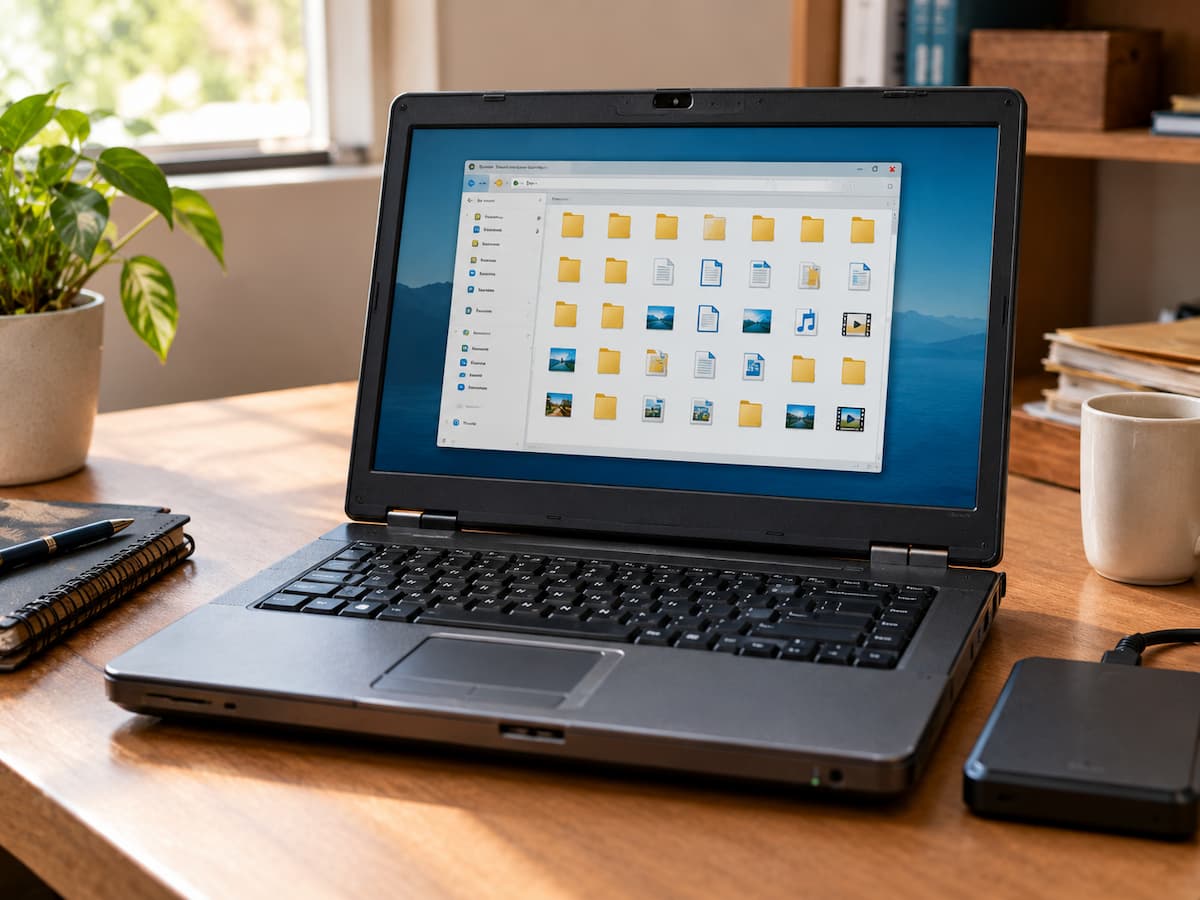
An old computer can look like nothing more than outdated hardware waiting to be recycled.
But the storage inside it may contain years of information that never made the move to a newer device.
That does not mean every old file is worth saving. It means the computer should be checked deliberately before you wipe it, donate it, sell it or throw it away.
The important question is not:
“What old files can I delete?”
It is:
“What information might still exist here that I have not preserved anywhere else?”
Why Old Computers Are Easy to Forget
When people replace a computer, they usually think about moving the files they actively use.
That often covers current documents, recent photos and obvious project folders.
What gets missed is everything that stopped being part of daily life before the migration happened.
An old computer may contain:
- photos from an older camera or phone
- school or work documents
- old project files
- receipts and downloaded records
- browser bookmarks
- email attachments
- personal notes
- older versions of important documents
- files stored on the desktop
- folders created for temporary projects
The age of the computer does not tell you the value of the information stored on it.
Start With the Places People Actually Used
Do not begin by opening every folder randomly.
Start with the locations that were most likely to contain personal files:
- Desktop
- Documents
- Pictures or Photos
- Downloads
- Videos
- Music
- project folders
- user-created folders outside the standard locations
The goal of the first pass is not to clean anything.
It is to understand what is there.
Once you know what the computer contains, you can decide what should be moved, archived, reviewed or discarded.
Check the Desktop Before Assuming It Is Just Clutter
The desktop is often treated as temporary storage.
That is exactly why it deserves attention.
People commonly leave important documents, photographs, exported files and unfinished work on the desktop because they intend to organise them later.
Some of those files may have remained there for years.
A messy desktop is not proof that its contents are unimportant.
Look at filenames, file types and dates before deciding what can be removed.
Look for Photos That Never Reached Your New Devices
Photos are among the most commonly overlooked files on older computers.
Before cloud photo libraries became common, people often copied photos from cameras, memory cards and phones onto a computer and then rarely touched the original folders again.
An old computer may therefore contain:
- family events
- old holidays
- school or work events
- photos from older phones
- camera imports
- edited versions
- photos received through email
Do not search only for a folder named Photos.
Images can be scattered across project folders, Downloads, Desktop and application folders.
If you are reviewing a large collection, searching by common image file types can help identify material that is otherwise easy to overlook.
Small Documents Can Be More Important Than Large Files
Large videos attract attention because they consume storage.
Important documents often do not.
A few megabytes may contain a contract, invoice, resume, school record, project spreadsheet, warranty or personal document that would be difficult to recreate.
Old filenames can make this harder.
A document called:
final.docx
or:
notes.pdf
does not tell you much.
Look at the surrounding folder, date and content before deciding whether an old document is disposable.
If you are building a long-term archive, meaningful filenames can make these files much easier to find later. See File Naming Rules That Make Old Documents Easier to Find.
Downloads Can Hide Both Junk and Important Files
Older Downloads folders often contain a mixture of:
- software installers
- PDFs
- email attachments
- forms
- photos
- compressed files
- duplicate documents
Some can be deleted.
Some may be the only remaining copy of something useful.
Do not remove files merely because they are old or because the folder looks messy.
First determine what they are and whether another usable copy exists.
For a dedicated Downloads cleanup process, see A Practical Reset for a Downloads Folder That Got Out of Control.
Check Old Project Folders Carefully
Projects can leave behind several generations of files.
You may find:
Project
├── Draft
├── Draft 2
├── Final
├── Final New
├── Final 2
└── Export
The names alone do not tell you which files matter.
An older version may contain information that disappeared from the final version.
A supposedly temporary folder may contain the original source material.
Before deleting a project folder, identify:
- the final result
- important source files
- reference material
- documents that contain unique information
- versions that may have separate value
If you find genuine duplicates, compare the files rather than relying only on their names. See Duplicate Files Are Not Always Safe to Remove.
Old Email Attachments May Still Be Local
An older computer may contain documents that were downloaded from email years ago.
These can include:
- receipts
- contracts
- forms
- photos
- work documents
- personal correspondence
The attachment may have a vague filename because it came directly from someone else.
If an old email application was used locally, there may also be application-specific mail data.
You do not necessarily need to recover every old message.
The point is simply to remember that valuable information may have entered the computer through email and never been copied elsewhere.
Browser Bookmarks Can Preserve Old Context
Browser data is not usually something people think about when moving files.
But bookmarks can contain useful clues about how the old computer was used.
An old bookmark might point to:
- a service you used for a project
- an important reference site
- an old account or provider
- a source of information you may want again
Browser data can also contain private information.
If the computer is going to another person, do not treat browser cleanup as optional.
Saving useful information and protecting private information are separate tasks.
Check Whether Another Copy Really Exists
One of the most dangerous assumptions during old-computer cleanup is:
“I must have this somewhere else.”
Maybe you do.
Maybe the newer computer contains only part of the folder.
Maybe the external drive contains an older version.
Maybe the cloud copy never included the original.
Before removing an important file, compare it with the copy you believe replaces it.
Check:
- Does the other copy actually open?
- Is it the same version?
- Are the important attachments or supporting files present?
- Is the second location still accessible?
A file existing in two places is not automatically unnecessary duplication.
If the Old Computer Will Not Start, Stop Guessing
A computer that does not boot is a different problem from a computer that contains clutter.
If important data may exist on its drive, avoid repeatedly experimenting with random repairs.
First determine whether the storage device is still accessible and whether the data needs recovery.
Depending on the hardware and condition of the drive, recovery may be straightforward or may require specialist help.
If the drive shows signs of physical failure and the information is irreplaceable, unnecessary attempts to use or repair it can create additional risk.
The key point is:
A computer that will not start is not necessarily a computer whose data is gone.
Be Careful With Unknown Executable Files
Old computers can contain installers, scripts and executable files for software that is no longer used.
Do not open an unfamiliar executable simply because you want to see what it does.
Start with:
- filename
- file type
- location
- date
- probable source
If you need to investigate an unfamiliar executable, use appropriate security tools or a safer environment rather than casually running it.
An old file is not automatically dangerous, but unknown software deserves more caution than a normal photograph or document.
Before You Give the Computer Away, Separate Recovery From Disposal
There are really two jobs:
1. Recover anything you still need.
2. Remove your personal information before the computer leaves your control.
Deleting a few folders is not necessarily the same as securely erasing personal data.
The appropriate process depends on the operating system, storage technology and whether the computer is being sold, donated or recycled.
Use the data-erasure or reset procedure appropriate to the device before transferring ownership.
If the machine contains particularly sensitive information and you are unsure how to erase it properly, professional assistance may be appropriate.
A Simple Old-Computer Review Order
If you still have the computer, avoid wandering through it without a plan.
A practical sequence is:
- Confirm the computer and storage are accessible.
- Check Desktop.
- Check Documents.
- Check Pictures and Videos.
- Check Downloads.
- Check obvious project folders.
- Search for important file types and keywords.
- Check whether important files already exist elsewhere.
- Move valuable files into your current storage or archive.
- Only then decide what should happen to the old computer.
This separates preservation from cleanup.
That distinction matters.
Do Not Try to Organise the Entire Old Computer at Once
An old computer can contain years of accumulated information.
Trying to create a perfect folder structure for every file can turn a simple review into a massive project.
Instead, focus on three decisions:
| Decision | Meaning |
|---|---|
| Keep | Still useful or difficult to replace |
| Archive | Important historical information that is no longer active |
| Remove | Confirmed unnecessary, redundant or disposable material |
If a file is unclear, put it in a review area rather than deleting it immediately.
Do Not Let “Old” Become Your Deletion Rule
Age is a weak reason to delete a file.
A ten-year-old family photograph may be more valuable than a document downloaded yesterday.
A five-year-old project may contain information you still need.
A recently downloaded installer may be completely disposable.
The better question is whether the file has continuing value and whether another reliable copy exists.
This is the same principle that should guide broader digital cleanup: make decisions based on usefulness and context, not age alone.
When the Review Is Finished, Give the Recovered Files a Proper Home
Finding old files is only half the job.
If everything you recover is placed into another folder called:
Old Computer Files
you may simply recreate the same problem somewhere else.
Move important material into the system you already use.
For example:
Archive
├── 2021
├── 2022
├── Completed Projects
└── Personal Records
Rename important files when the old names are too vague.
For a broader filing system, see A Simple Digital Filing System for Finding Your Files Again.
Conclusion
An old computer is not necessarily valuable because of the hardware.
Its value may be hidden in the information that never made it to your newer devices.
Before disposing of an old machine, check the places where overlooked files commonly survive: Desktop, Documents, Photos, Downloads, project folders, email-related files and other user-created locations.
Compare important files against the copies you believe you already have.
Be cautious with unknown executable files.
If the computer no longer starts and the data may be irreplaceable, treat it as a possible recovery situation rather than a cleanup project.
And once the useful information has been recovered, give it a proper home instead of creating another forgotten folder.
The goal is not to save everything from an old computer.
It is to make sure that valuable information is not lost simply because the hardware became obsolete.
FAQs
1. What should I check first on an old computer?
Start with Desktop, Documents, Pictures, Videos, Downloads and obvious project folders. These are common places for personal files to remain.
2. Should I keep everything from my old computer?
No. Keep information that is still useful, difficult to replace or worth preserving historically. Review duplicates and temporary files rather than keeping everything automatically.
3. How do I know whether an old file is already backed up?
Find the other copy and verify that it opens, is complete and contains the information you need. Do not assume that another device automatically contains the same version.
4. What if the old computer does not turn on?
If important data may be stored on it, avoid unnecessary experimentation. Determine whether the storage device can be accessed safely and consider professional recovery help when the information is irreplaceable.
5. Can I delete old installers?
Sometimes, but first confirm that they are genuinely unnecessary. Do not confuse software installers with personal documents simply because they are both stored in Downloads.
6. Should I check browser data before giving away an old computer?
Yes. Browser profiles may contain bookmarks and other personal information. More importantly, use an appropriate reset or data-erasure process before transferring ownership.
7. Is an old computer a backup?
Not by itself. A second copy can provide some protection, but an old device is not a reliable backup unless you know the data is intact, accessible and covered by a sensible recovery strategy.