
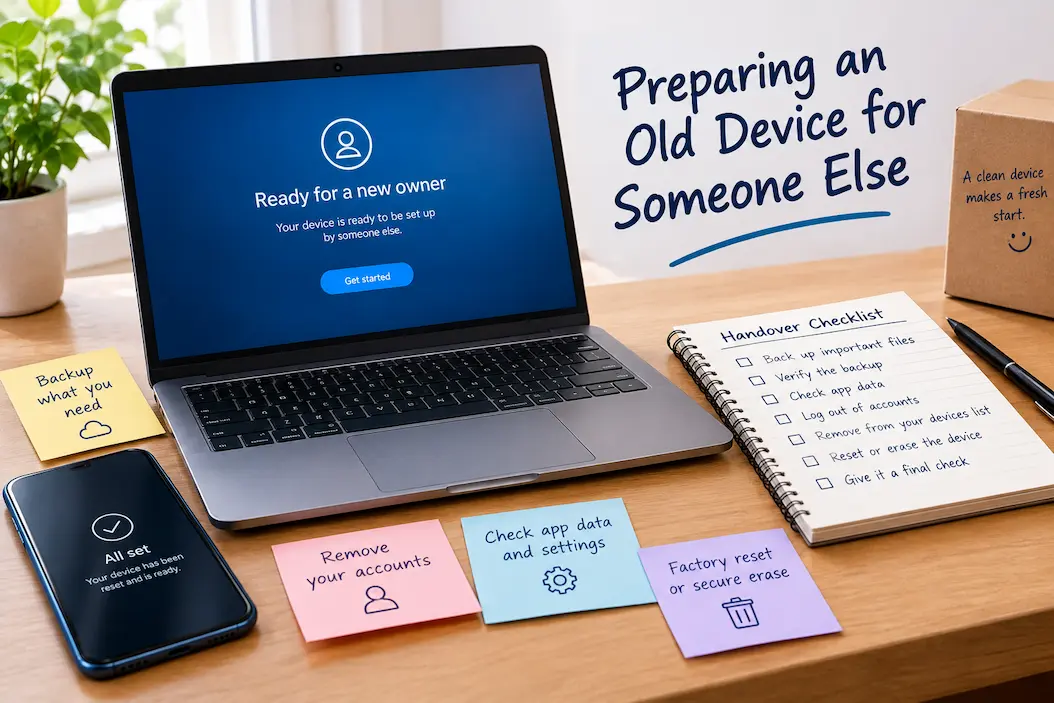
Giving an old computer or phone to another person sounds straightforward until you remember how much personal information can remain on a device. Photos, documents, browser sessions, saved passwords, downloaded files, messages, account connections, and other data can survive in places you may not think about during a quick cleanup.
Deleting a few folders is therefore not enough. Neither is simply signing out of your main account and handing the device over. The safer approach is to separate the process into two jobs: make sure you have everything you want to keep, then properly remove your personal information before the device changes hands.
This matters whether you are selling the device, giving it to a family member, donating it, returning a work computer, or passing it to someone temporarily. The exact reset and erasure options depend on the device and operating system, so the final reset should always follow the current instructions for that particular device.
Decide What Is Happening To The Device
Start by establishing what the next owner or recipient will actually do with it.
A computer being given to a family member may need to be prepared differently from one being sold to an unknown buyer. A company-owned laptop being returned to an employer may have additional requirements that you should not try to handle yourself. A phone being recycled has a different purpose again.
This decision affects what you should preserve, what accounts need to be removed, and what information should be erased. It also prevents a common mistake: performing a basic reset when the situation requires a more thorough handover.
If you are unsure whether the old device is worth keeping, repairing, selling, donating, or recycling, the Old Device Evaluation Checklist can help you make that decision before you start preparing it.
Back Up What You Still Need
The first practical step is preservation, not deletion.
Look through the device for photographs, documents, downloads, projects, recordings, saved information, and other files you may want in the future. Check the places where you normally store information, but also inspect less obvious locations such as the desktop, Downloads folder, application-specific folders, and locally stored archives.
Pay particular attention to information that cannot easily be downloaded again. An old installation file can usually be replaced. A personal photograph, signed document, work project, or important receipt may not be so easy to recover.
If the device has accumulated years of downloads, the Downloads Folder Audit Worksheet can help separate important files from temporary clutter before you begin the handover process.
Verify the Backup
Don’t just copy files blindly.
Open your backup location and check a few key items. If you backed up photos, open some older ones. If you backed up documents, open various types of documents. If you have critical files, ensure you can open them directly from the backup location.
This is crucial because recovering a failed backup after resetting an old device is far more difficult than doing so while the original files are still available.
You don’t need to check every single file. The goal of this check is to ensure that information important to you is stored somewhere other than the device you are about to wipe, giving you peace of mind.
Check App Data Before Removing Software
Apps may contain personal data that doesn’t fit into a standard documents folder.
Think of email clients, accounting software, photo management programs, project management tools, recording apps, note-taking software, or any other program that generates and locally archives information.
If an app is critical, check whether its data is synced to your account or stored locally. While you can usually re-download the app, simply installing the software on another device might not be enough to restore locally stored information.
This is one reason why you shouldn’t just delete apps when handing your device over to someone else. First, check if these apps contain content you need to keep.
Log Out of Your Accounts
Once you have backed up important data, start disconnecting your device from your digital accounts.
Log out of any accounts you no longer wish to link to the device. This may include your primary computer or phone account, cloud storage, email, browser, office software, and other apps that are trusted or registered on the device.
Do not assume that you will automatically be logged out of all accounts when you close a browser window. Browsers may still store sessions, profiles, login credentials, or synchronization data on the device.
The goal is to prevent the next user from accessing the service under your name as soon as they turn on the device.
Remove the Device From Your List of Accounts
Some services maintain a list of authorized or linked devices.
First, log out, then check the relevant accounts on another trusted device or via the account management interface, if possible. If the old device still appears as a trusted or active device, follow the service provider’s instructions for removing it.
This is particularly important if you no longer have physical control over the device. You need to ensure that the link between the device and the account is severed, rather than leaving an obsolete computer or phone permanently linked to your account.
Pay Special Attention To Browsers
Browsers deserve their own check because they can contain a surprisingly complete picture of someone’s online activity.
Before the reset, review saved passwords, bookmarks, browser profiles, autofill information, extensions, and synchronized data. If there is information you want to keep, make sure it is available independently of the old device.
Once you have confirmed that your important browser information is preserved, sign out of the browser account and remove the local profile as appropriate.
Do not rely on deleting the browsing history alone. History is only one small part of what a browser can retain.
Check Password Managers And Authentication
If you used a password manager on the old device, make sure your credentials are safely available elsewhere before removing the application or resetting the device.
Authentication methods also deserve attention. A device may have been used for account verification, security prompts, authentication applications, or other sign-in processes. Make sure important accounts have another working authentication or recovery method before the old device leaves your control.
This is less about protecting the next owner and more about protecting your continued access to your own accounts.
The safest time to resolve these issues is while you still have the old device in front of you.
Review Local Files One More Time
After backing up your important information, perform a final file review.
Look at the desktop, Documents, Pictures, Videos, Downloads, and any folders you recognize as personal. Then consider whether any applications created their own storage locations.
You are not trying to perform a perfect digital cleanup. You are looking for anything that would create a problem if another person gained access to it.
A useful question is: “Would I be comfortable with the next person seeing this file?” If the answer is no, either preserve it elsewhere and ensure it will be erased, or investigate where it is stored before continuing.
Disconnect Personal Services And Accessories
Before handing over the device, remove connections that belong to you.
This can include paired Bluetooth accessories, personal cloud accounts, printers, smart devices, browser synchronization, and other services that you do not want connected to the recipient’s future setup.
For a phone, this might include a smartwatch or wireless earbuds. For a computer, it could include a personal cloud-storage account or other connected service.
Not every connection needs to be manually removed if the device’s official reset process handles it, but understanding what remains connected gives you a better chance of catching something unusual.
Then Use The Device’s Proper Reset Process
Only after your files and accounts have been dealt with should you move to the actual reset.
Use the device’s built-in reset or factory-reset process and follow the current instructions for the operating system or manufacturer. Do not rely on manually deleting files as a substitute for the proper reset process.
The correct procedure can vary considerably between devices, especially when encryption, account locks, device protection, or ownership features are involved.
If the device is being sold, donated, or given away, the objective is not simply to make the screen look new. You want the device to reach its setup state without leaving your personal account information available to the next person.
Don’t Rush Through The Final Setup Screen
After the reset finishes, take a moment to inspect what the device presents.
Ideally, a device being handed to another person should behave like a device awaiting its new owner’s setup rather than one that still belongs to you.
If it opens directly into your old account, displays your name, asks for your credentials, or shows personal information, stop and resolve the issue before handing it over.
For account-protected devices, follow the manufacturer’s current ownership and account-removal instructions rather than attempting unofficial workarounds. A legitimate transfer should leave the recipient able to configure the device normally without relying on your personal account.
Physical Preparation Still Matters
Once the digital side is complete, look at the physical condition.
Clean the exterior, screen, keyboard, ports, and other accessible surfaces. Gather the charger and accessories that you intend to provide. If you are selling the device, accurately describe its condition rather than making it appear newer than it is.
For a family handover, it can also be helpful to provide the basic accessories the person will need to use it. There is little value in giving someone a device that technically works but cannot be charged or connected without additional equipment.
If the battery is swollen, damaged, unusually hot, or otherwise showing signs of a safety problem, do not continue treating the device as an ordinary handover. Follow appropriate manufacturer or recycling guidance.
A Final Handover Check
| Area | What To Confirm | Why It Matters |
|---|---|---|
| Personal files | Important data backed up and verified | Prevents accidental data loss |
| Downloads | Important files reviewed | Easy place to overlook personal data |
| Applications | Local data checked | Some information may not be in normal folders |
| Browser | Profiles, passwords and sync reviewed | Browsers can retain significant personal information |
| Accounts | Personal accounts signed out | Prevents continued access |
| Device lists | Old device removed where appropriate | Ends trusted-device relationships |
| Authentication | Important accounts have another access method | Prevents account lockouts |
| Reset | Official reset process completed | Removes the old user environment |
| Final screen | No personal information remains | Confirms the device is ready |
| Accessories | Charger and relevant accessories prepared | Makes handover practical |
| Physical condition | Device cleaned and checked | Helps the recipient understand what they are receiving |
What If You Give the Device to Someone You Know?
Even if the recipient is a family member or acquaintance, the process doesn’t necessarily have to be much different.
If you trust the recipient, logging in with your account might not seem like an issue. However, account and personal data can remain linked to the device long after the handover. The recipient could inadvertently change settings or install software while your account is still connected.
It is best for both parties to completely sever the connection. Start by addressing your own account and settings, rather than simply handing them over to the next owner.
What If the Device is Destined for Recycling?
“Even devices destined for recycling should be treated as devices containing personal data.”
Back up the data you want to keep, remove your account, and perform the manufacturer-recommended reset or data wipe before sending the device for processing. If the device is damaged and cannot be reset in the usual way, contact the manufacturer or an authorized recycling company for proper handling.
A cracked screen or a dead battery does not mean the stored data is worthless.
The Transfer is Complete When You No Longer Need the Device
Preparing an old device for someone else isn’t just about making it look tidy. It’s about creating a clear separation between your digital life and that of the next user.
Back up important data, verify the backup, check application data, log out of accounts, review browser data, manage authentication and trusted device associations, and finally, use the correct reset procedure. Double-check the device one last time before handing it over.
You don’t need to spend days manually deleting every single file. What you do need to do is make the right decisions in the right order. You cannot delete files that you still need.
If you want a dedicated step-by-step version for the final handover itself, the Old Device Handover Checklist brings these checks together in a practical sequence.