
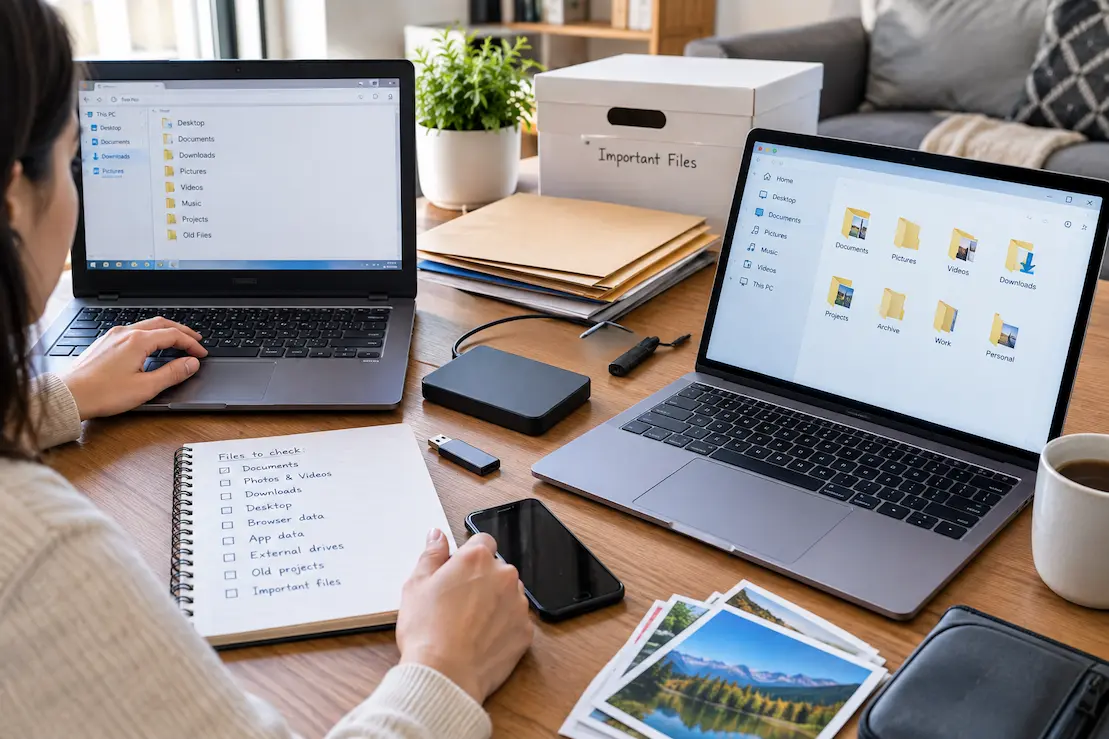
Moving to a new computer is easy to underestimate. The obvious files usually make the move: documents, photos, videos, and folders you remember using. The problems tend to appear later, when you need a small piece of information and discover that it never made it to the new machine.
The forgotten items are often not dramatic. They are downloaded attachments, old project folders, browser-related information, scans, exported files, application data, or files sitting in a temporary location that became permanent.
A reliable computer move is therefore not just a matter of copying familiar folders. It is a review of where your digital life actually accumulated information.
Start With Where You Actually Worked
Before deciding what to transfer, list the places where you really stored or created files.
- Desktop
- Documents
- Downloads
- Pictures and Videos
- Cloud-synced folders
- Project-specific folders
- External drives and USB storage
- Application-specific folders
You do not have to copy everything immediately. First identify the locations. This prevents the common mistake of treating Documents as if it were the complete record of the old computer.
The Desktop Can Hide Real Files
A desktop may contain shortcuts, folders, working documents, old downloads, and the last remaining copy of a project.
Do not judge its importance by how messy it looks. Open folders and distinguish actual files from shortcuts before deciding what can be left behind.
Downloads Deserves Its Own Review
Downloads often becomes an accidental archive. It may contain receipts, contracts, manuals, scanned forms, account exports, photographs, attachments, reports, installers, and project files.
If you are not sure what a file is, do not delete it simply because it is old. Check its contents, source, date, and whether another copy exists.
If storage space allows, moving the Downloads folder temporarily can be safer than trying to clean it during the computer migration. Cleanup and migration are different jobs.
For a detailed cleanup process, you can also review A Practical Reset for a Downloads Folder That Got Out of Control.
Look Beyond Normal Documents
Some important files live inside workflows rather than standard personal folders.
A project might have source files, reference material, exports, calculations, images, drafts, or supporting documents. A design program may use its own project directory. A developer may keep local projects outside Documents. A writing application may store drafts or working files separately.
The useful question is not whether a folder looks like an official personal-data folder. Ask instead:
“Does this folder belong to something I still care about?”
Check Old Projects Before Calling Them Finished
Old projects are easy to overlook because they may not have been opened for years.
Look at folders named after:
- clients or customers;
- businesses or side projects;
- courses or studies;
- renovations or major purchases;
- completed work;
- personal projects;
- old research or reference material.
Instead of asking, “Have I used this recently?”, ask “Would losing this create a problem if I needed it again?”
Infrequent use does not mean low value. An old contract, original project file, certificate, receipt, or photograph may be difficult to recreate even if it has not been opened for years.
Browser Information Is More Than Bookmarks
Signing into the same browser account does not necessarily mean every piece of local information has been reproduced.
Before resetting the old computer, check the browser information you actually rely on:
- bookmarks;
- important browser profiles;
- password access through your password manager;
- extensions you still need;
- locally stored downloads;
- browser-specific settings or workflow information.
The exact migration behavior varies by browser and synchronization setup. Verify important information rather than assuming that account sign-in guarantees everything will return.
Photos Can Exist Outside the Main Photo Library
A photo collection may include much more than the images visible in your usual photo application.
Check for screenshots, scanned documents, edited copies, exported images, videos, downloaded photographs, attachments, and folders copied from phones or memory cards.
If you have moved photos between several devices over the years, determine where the originals are and whether another reliable copy exists.
Do not combine a major photo cleanup with the computer migration unless necessary. Trying to deduplicate, reorganize, and migrate at the same time increases the chance of losing something.
External Storage Can Create a False Sense of Completeness
The old computer may not contain everything you own.
Check whether you have used:
- external hard drives;
- USB drives;
- memory cards;
- network storage;
- older backup drives;
- cloud storage services.
You do not necessarily need to copy all of these files onto the new computer. The important thing is to know what exists, where it is stored, and whether important information has another reliable copy.
Prioritize Files by How Difficult They Are to Replace
Not every file deserves the same migration priority.
| File situation | Recommended approach |
|---|---|
| Easy to replace and unimportant | Do not prioritize it |
| Useful but easily replaceable | Transfer when convenient |
| Important and difficult to replace | Transfer and verify carefully |
| Important with no confirmed second copy | Back it up before making other changes |
The last category deserves the most attention. Moving a single copy from one computer to another does not magically turn it into a backup.
For important information, think separately about migration and backup. Migration moves the working copy. Backup provides another recovery path.
Temporary Files Can Become Permanent Records
Files created “just for now” often survive for years.
Examples include:
- a spreadsheet used for a one-time calculation;
- a draft prepared for an email;
- an exported report;
- a temporary folder for a project;
- a document with an unhelpful name such as
CopyorReport2.
You do not need to preserve every temporary file. But if the file contains information that would be difficult to recreate, it deserves a closer look before deletion.
This is also why filenames alone are a poor basis for migration decisions.
Application Data Needs a Different Approach
Some applications maintain settings, templates, profiles, saved sessions, local databases, or project information outside ordinary folders.
Do not blindly copy every hidden application directory. Some contain temporary or machine-specific information. Instead, make a list of the applications that matter to your work and determine what information each one actually needs to retain.
For important software, check its own migration, export, synchronization, or backup options where available.
Do Not Reset the Old Computer Immediately
One of the simplest ways to reduce migration mistakes is to keep the old computer available for a while after the new one is in normal use.
Use the new computer for your ordinary tasks. When you suddenly think, “Where is that file?”, treat the question as useful evidence. You may have discovered something that was missed during the transfer.
Once you find the missing information, move it properly and make sure the new arrangement is backed up where appropriate.
Test Real Work Instead of Only Checking Folders
A folder full of copied files does not prove that the migration worked.
Open the new computer and perform several normal tasks:
- Open important documents.
- Find an older photograph.
- Open a completed project.
- Check access to important accounts.
- Open the applications you rely on.
- Find a file that is rarely used.
- Confirm that important files are readable.
Testing real work can reveal problems that a simple file count cannot.
Use a Final “Would I Miss This?” Test
When you find an uncertain file on the old computer, imagine that it disappears permanently today.
“That would be a problem.”
Preserve it and verify the copy.
“I could get it again easily.”
It is probably lower priority.
“I’m not sure.”
Investigate before deciding.
This simple test is useful because migration decisions are often made under time pressure. Uncertainty is a reason to investigate, not a reason to delete.
Keep Migration and Cleanup Separate
Changing computers can create a strong temptation to “start fresh” by deleting everything old.
That can be useful later, but doing both jobs simultaneously increases risk.
A safer sequence is:
- Identify where information exists.
- Protect important and irreplaceable files.
- Transfer the information needed on the new computer.
- Verify normal work.
- Keep the old computer available temporarily.
- Only then begin deeper cleanup or disposal.
This gives you room to correct mistakes before the old machine is wiped or handed to someone else.
What People Most Often Forget
There is no universal list, but these categories deserve an explicit check:
- old Downloads;
- Desktop folders;
- local project directories;
- old scans and photographs;
- exported reports;
- browser-related information;
- application-specific projects and templates;
- files on external drives;
- documents created temporarily;
- old records that are rarely opened but difficult to replace.
The important point is not to copy every file blindly. It is to make sure you have considered the places where important information could reasonably be hiding.
When Is the Computer Move Actually Finished?
A computer move is finished when the new machine can support your normal work without repeatedly sending you back to the old one.
That means more than transferring Documents and Pictures. It means checking the places where your actual digital habits created files, verifying important information, and giving yourself enough time to discover anything you forgot.
Do not reset an old computer merely because the obvious files have been copied. The most commonly missed files are usually ordinary pieces of digital life that were saved somewhere convenient and then forgotten.
Conclusion
The safest computer migration is not necessarily the one that copies the most data. It is the one that preserves the information, projects, records, and working environment that actually matter.
Look beyond the obvious folders. Check Downloads, the Desktop, old projects, application-related files, browser information, external storage, and temporary files. Prioritize information that is difficult to replace, verify the new computer through real use, and keep the old machine available until you are confident the move is complete.
Most importantly, do not confuse a successful file transfer with a successful migration. The real test is whether you can continue your normal digital life without discovering important pieces left behind.
Related Guides
A Cleaner Way to Start With a New Computer · How to Move Accounts to a New Email Address Without Losing Access
FAQs
What files are most commonly forgotten when moving to a new computer?
Downloads, Desktop folders, old project folders, local application data, exported files, browser-related information, scans, and files stored on external drives are common places to check.
Should I copy everything from my old computer?
Not necessarily. Focus on information that is important, difficult to replace, or relevant to your current work. Avoid blindly copying temporary and machine-specific data.
Should I clean up my old computer before moving?
It is usually safer to separate cleanup from migration. Transfer and verify important information first, then perform deeper cleanup once you know the new computer is working properly.
How long should I keep the old computer?
There is no universal period. Keep it available long enough to use the new computer normally and discover whether anything important was missed. The more important or complicated the migration, the more cautious you should be.
Is moving a file to the new computer a backup?
No. Moving a file creates or transfers a working copy, but it does not by itself provide an independent recovery copy. Important files should have an appropriate backup arrangement.
What should I check before wiping the old computer?
Open important files on the new computer, test your normal applications and accounts, review the old Desktop and Downloads, check project folders and external storage, and make sure important information has a reliable copy.
Should I migrate old files that I have not opened for years?
If they are difficult to replace or could matter later, consider preserving them even if they are rarely used. Age alone is not a reliable reason to delete a file.