
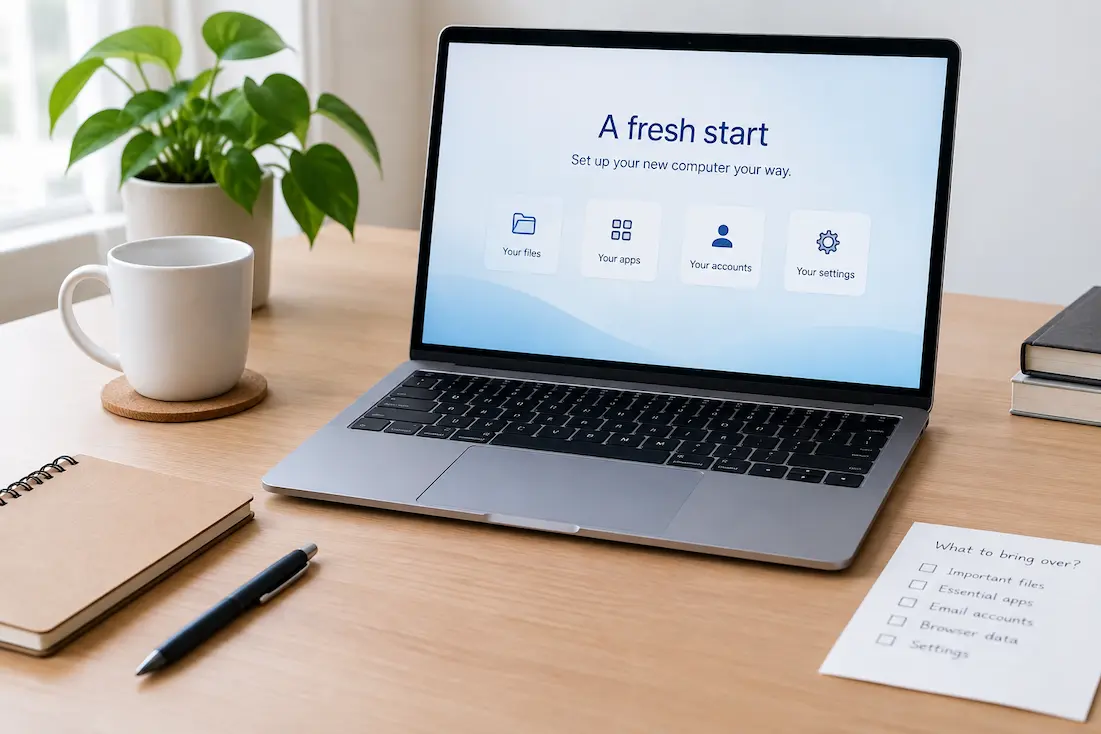
A new computer gives you a rare opportunity that an ordinary cleanup does not: you can decide what belongs on the machine before years of digital habits start accumulating again.
The easiest mistake is to treat setup as a copying job. If you transfer every folder, installer, application, browser extension, old project, and download from the previous computer, the new machine can inherit the same clutter you were trying to leave behind.
A cleaner start does not mean abandoning everything. It means separating what you need now, what you may need later, and what no longer deserves a place on the new computer.
Start With the Computer You Need Today
Before moving files, think about how the new computer will actually be used. Your current work may be different from what you did several years ago.
Maybe the old computer was used for school, freelance work, photo editing, gaming, accounting, or a previous job. If some of those activities have ended, there is no reason to rebuild the old environment exactly as it was.
Write down the tasks you expect to perform regularly. Those tasks should determine the applications, files, accounts, and accessories you set up first.
Do Not Make the Old Folder Structure Your New Design
An old computer’s folders are usually a history of decisions made over many years. They are not necessarily a good organizational system.
Copying everything exactly as it exists may bring back abandoned projects, duplicate files, old installers, temporary folders, and confusing naming habits.
Instead, create a small number of useful destinations on the new computer. For example:
- Current work
- Personal documents
- Photos
- Finance and records
- Projects
- Archive
The exact names do not matter as much as having a structure that makes sense to you. For a broader filing approach, see A Simple Digital Filing System for Finding Your Files Again.
Protect Important Data Before You Start Simplifying
A fresh start is not a reason to make irreversible decisions quickly.
Before removing anything from the old computer, make sure important information exists somewhere safe. This includes personal photographs, financial records, contracts, work files, important documents, and other information that would be difficult or impossible to recreate.
Do not assume that a second copy automatically means you have a reliable backup. If practical, open several files from the backup or otherwise verify that the important information is actually accessible.
Once important data is protected, you can be much more selective about what gets moved to the new computer.
Move Files by Purpose, Not by Folder
Instead of asking, “Which old folders should I copy?”, ask, “Which information do I need on this computer?”
For example, an active project should probably move into your current project area. A completed project that you rarely access may belong in an archive. An old installer may not need to move at all. A family photograph may deserve permanent storage even though it has not been opened for years.
| Type of information | Typical treatment |
|---|---|
| Active work | Move to the new computer and give it a clear home |
| Frequently used personal files | Move and organize |
| Completed projects | Archive if they are still worth keeping |
| Rarely used large files | Consider external or cloud storage |
| Old installers | Keep only when there is a clear reason |
| Temporary downloads | Review before moving |
| Unknown files | Investigate rather than automatically deleting or copying |
Give the Downloads Folder a Fresh Start
Downloads is one of the easiest places to carry old digital clutter into a new machine.
It may contain installers, attachments, PDFs, images, compressed files, temporary documents, and files that were supposed to be moved elsewhere. Copying the entire folder simply transfers that history.
Review it before migration. Keep files that still have a clear purpose, move permanent records into their proper location, and remove only items you are confident you no longer need.
For a deeper cleanup, see A Practical Reset for a Downloads Folder That Got Out of Control.
Install the Software You Actually Use
A new computer does not need to contain every application from the old one.
Start with software that supports your current routine. Think about what you use every week rather than what happens to appear in the old computer’s application list.
Selective installation has another advantage: it gives you a chance to notice applications that were installed for a single task years ago and never used again.
Be careful with programs that store important information locally. Reinstalling the application does not necessarily restore its local data, settings, projects, templates, or libraries. Before removing the old installation, find out where important application data is stored.
Set Up the Browser Without Recreating Its Entire History
Your browser may be one of the most important parts of the new computer, but signing in and synchronizing everything is not always the same as starting clean.
Restore the information you actually use: important bookmarks, saved passwords through your chosen password manager, necessary profiles, and essential extensions.
At the same time, review old extensions and bookmarks. A new computer is a good opportunity to remove tools you no longer use instead of automatically rebuilding years of browser baggage.
The goal is not to make the browser identical to the old machine. It is to make it useful for your current work.
Set Up Accounts Before You Need Them
A computer can look completely ready while still having an important access problem.
Sign in to the services you rely on most and confirm that authentication works. Pay particular attention to your primary email, cloud storage, password manager, work services, financial services, and accounts that use additional verification.
If the old computer was used for authentication or trusted-device approval, make sure alternative recovery or authentication methods are available before retiring it.
This is one of those problems that may not appear during setup. It appears later, when a service suddenly asks for verification.
Reconnect Only the Hardware You Still Use
A new computer can become cluttered physically as quickly as it becomes cluttered digitally.
Start with the keyboard, mouse, monitor, printer, scanner, headphones, webcam, storage devices, and other equipment you actually use.
Do not feel obligated to recreate every connection from the old computer. If a device has not been used in years, its place in the new setup can be decided later.
When software or drivers are required, obtain current versions from the manufacturer’s official source rather than copying old installers from the previous machine.
Give Photos Special Attention
Photos deserve more care because they often exist in several forms: original photographs, edited copies, screenshots, exports, phone transfers, and cloud-synchronized versions.
Before moving a large collection, identify where the original files actually live. Pay special attention to photographs that exist only on the old computer.
Do not try to solve every photo-organization problem during the first hour of computer setup. First make sure important originals are safe. Cleanup and duplicate review can happen afterward.
Do Not Automatically Copy Every Old Project
Old projects can be particularly misleading because a folder may look important even when the work inside it has been finished for years.
Separate active projects from completed projects. Active work belongs in the new working environment. Completed work can be archived if there is a reason to retain it.
If you are unsure about an old project, there is no need to make an immediate permanent decision. Keep it safely outside the main working area and revisit it later.
Use File Names to Keep the New Computer Clean
A new computer is a good place to establish better naming habits without trying to rename your entire digital history.
Use names that help you recognize a file later. Dates can be useful for recurring records, while project names and document types can make groups of related files easier to find.
For example, 2026-11-02 – Insurance Renewal is easier to recognize later than final-new-latest.pdf.
You do not need a complicated naming formula. Consistency is more valuable than complexity. See File Naming Rules That Make Old Documents Easier to Find for more detail.
Keep the New Computer’s First Day Small
Trying to migrate your entire digital life in one sitting creates unnecessary pressure.
A better first-day goal is simply to make the computer usable.
| Priority | Set up first |
|---|---|
| 1 | Internet connection and system updates |
| 2 | Primary account and security access |
| 3 | Browser and password access |
| 4 | Essential applications |
| 5 | Current work and important personal files |
| 6 | Daily hardware and peripherals |
| 7 | Less frequently needed material |
Everything below the first few priorities can wait. If you discover something is missing while using the computer normally, you can return to the old machine and retrieve it deliberately.
Keep the Old Computer Available for a While
If the old computer still works, there is little benefit in wiping it immediately.
Use the new computer normally for a period of time. When you suddenly realize that an old document, setting, project file, or application detail is missing, the old computer gives you a way to check.
This is safer than trying to predict every possible need before you have actually used the new machine.
Keeping the old computer temporarily is not a substitute for a backup. It is simply a practical safety net while you verify the new setup.
Clean Up After You Know What You Need
One of the best ways to avoid unnecessary decisions is to postpone uncertain ones.
After using the new computer for a few days or weeks, you will have a clearer idea of which files, applications, settings, and accessories you actually need.
That makes the second cleanup much easier. You can remove unused software, archive old projects, organize remaining files, and deal with duplicates based on real usage rather than assumptions.
A Simple Three-Stage Setup
| Stage | Goal | Decision |
|---|---|---|
| Before setup | Protect important information | What must not be lost? |
| First use | Build a functional workspace | What do I need every day? |
| After normal use | Refine the system | What turned out to be unnecessary? |
This is deliberately different from trying to complete a full migration checklist in one session. The new computer should first become useful, then become organized.
What Does Not Need to Come With You?
A useful question during setup is:
“Would I notice if this were not on the new computer?”
If the answer is no, the item may not need to be transferred immediately.
An old installer, abandoned project, obsolete browser extension, temporary download, and outdated application can all remain outside the new working environment while you decide what to do with them.
Leaving something behind temporarily is not the same as deleting it. It is simply refusing to let uncertainty fill the new computer.
Do Not Try to Make the New Computer Perfect
A clean setup is not a perfect setup.
You will discover better folder names, missing applications, useful shortcuts, and forgotten files as you use the machine. That is normal.
The goal is to create a simple starting point that can improve gradually without requiring another major digital cleanup.
Conclusion
The cleanest way to start with a new computer is not to copy the old one perfectly. It is to rebuild the environment around the life you have now.
Protect important information first. Set up the accounts and applications you actually use. Move active files into clear locations. Review downloads, projects, photos, and old software instead of transferring everything automatically. Keep uncertain material safely outside the main workspace until you know whether you need it.
A new computer gives you a temporary advantage: there is very little digital history on it yet. Use that opportunity to create a workspace that is easier to understand, easier to maintain, and less likely to become a copy of the old machine.
Related Guides
The Files People Forget During a Computer Move · What Gets Missed During a New-Phone Setup
FAQs
Should I transfer everything from my old computer?
No. Transfer the information that supports your current work and personal needs. Archive or retain older material separately when appropriate.
Should I wipe the old computer immediately?
No. If it is still usable, keep it available while you verify that the new setup contains everything important. Do not treat the old computer as your only backup.
Should I reinstall every old application?
No. Start with software you actually use. For applications that contain important local data, confirm how that data is stored before retiring the old installation.
What should I do with my old Downloads folder?
Review it before moving it. Keep important files, move permanent records into proper locations, and remove only files you are confident you no longer need.
Is a new computer a good time to reorganize all my files?
It can be, but you do not need to finish everything immediately. Establish a simple structure first and improve it gradually as you encounter files.
How long should I keep the old computer?
There is no universal period. Keep it available long enough to verify the new setup and locate anything you unexpectedly need, while maintaining proper backups independently.
What is the biggest mistake when setting up a new computer?
Automatically copying the entire old environment without deciding what still matters. A new computer is most useful when it reflects your current needs rather than your entire digital history.