
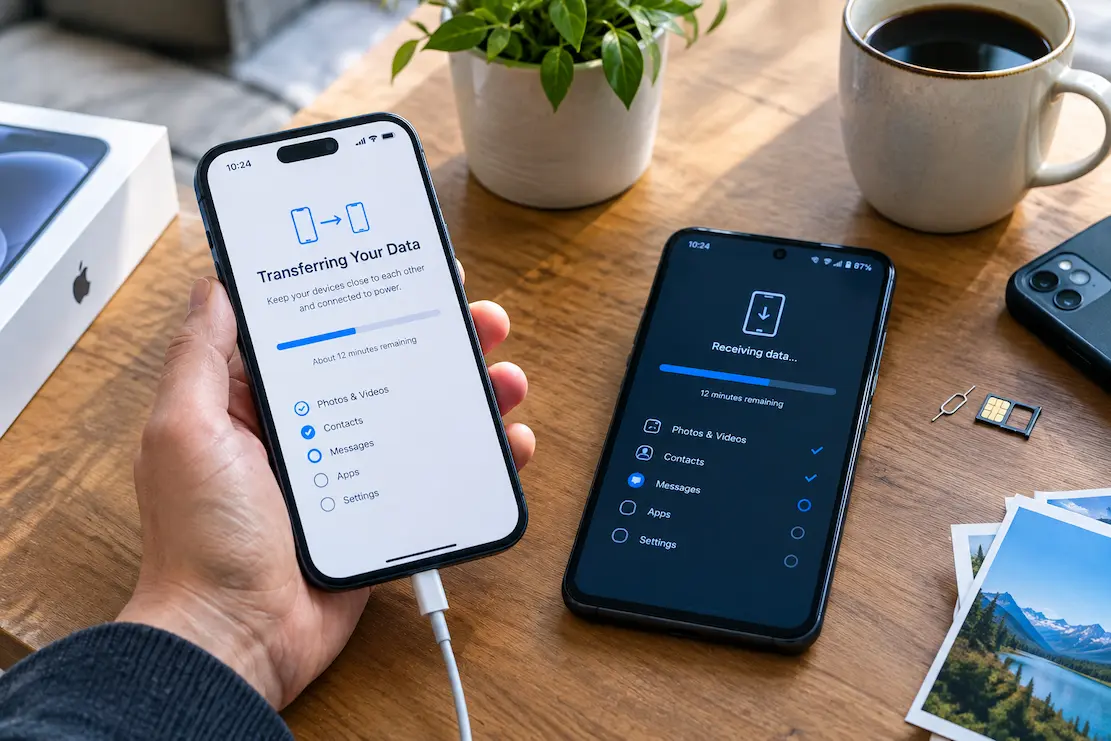
Setting up a new phone can create a false sense of completion.
Your apps may be installed, recent photos may be visible, contacts may appear, and the home screen may look familiar. It is tempting to assume the migration worked.
But a phone transfer is not simply a copy of everything from one device to another. Different apps, accounts and services handle their own data, backups and security settings.
The better question is not:
“Does the new phone look like the old one?”
It is:
“Can I still do the things that matter to me?”
That distinction makes the final check much more useful.
Do Not Judge the Transfer by the Home Screen
A familiar home screen is reassuring, but it proves very little.
An app can be installed without its local data being restored. A contact can appear while being stored under an unexpected account. A password may exist while an authentication method still depends on the old phone.
Before resetting the old device, check the information and activities you actually rely on.
Think about what you:
- created
- saved
- received
- accessed
- used for work
- used for security
The goal is not to make two phones identical. The goal is to make sure the new phone can replace the old one safely.
Check Photos Beyond the Most Recent Ones
Photos are one of the easiest things to assume have transferred correctly.
Open the photo library and deliberately check different periods rather than looking only at the latest images.
Pay attention to:
- older family photographs
- videos
- screenshots
- scanned documents
- downloaded images
- photos edited or stored by other apps
If you use cloud photo storage, verify that the new phone is connected to the correct account and that older material is actually accessible.
If an important image exists only on the old phone, do not reset that device until you have another confirmed copy.
Messages Can Have Their Own Migration Rules
Recent conversations appearing on the new phone does not necessarily mean every older message and attachment is available.
Messaging services may use their own backup or transfer process.
Check conversations that matter, especially those containing:
- addresses
- receipts
- work instructions
- travel information
- important photographs
- documents
- voice messages
You do not need to inspect every conversation.
Pick several older conversations and verify that the information you might realistically need is still accessible.
If something is missing, investigate the service’s own backup, transfer or export options while the old phone is still available.
Authentication Is More Important Than Most Apps
Authentication problems are especially dangerous because they may not appear until you try to sign in somewhere important.
Check accounts that use:
- authenticator applications
- passkeys
- device-based approval
- security notifications
- two-factor authentication
- backup codes
Installing an authentication app on the new phone does not automatically mean every account has been transferred.
Test your most important accounts before wiping the old device.
Pay particular attention to your primary email account because it may be the recovery path for many other services.
Test Passwords and Important Account Access
A password manager may synchronize successfully while individual accounts still require additional verification.
Test the accounts where losing access would create the most trouble.
Start with:
- primary email
- cloud storage
- financial services
- work accounts
- important social accounts
- accounts that control other services
You do not need to log into every account on day one.
Prioritize the accounts that would be difficult to recover if the old phone disappeared.
Check the Downloads Folder
Phones often become temporary storage without the owner noticing.
The Downloads folder may contain:
- PDFs
- receipts
- invoices
- contracts
- forms
- work documents
- scanned records
- images downloaded from websites or messages
These files may not appear in your main photo library or app list.
Open the old phone’s file manager and check Downloads and any other folders you regularly used.
Do not transfer everything automatically.
First separate files that are genuinely important from temporary material that can be downloaded again.
Installing an App Does Not Guarantee Its Data Came With It
One of the most common migration misunderstandings is treating the application and its data as the same thing.
An app may be installed again from the app store while its:
- notes
- offline files
- recordings
- local projects
- settings
- saved information
are handled separately.
Think about applications where you created or stored information yourself.
These deserve more attention than ordinary apps that simply provide access to an online service.
If an important app appears empty on the new phone, stop before deleting anything from the old device and check its own backup, synchronization, transfer or export options.
Banking and Payment Apps Need a Separate Test
Financial applications often treat a new phone as a new security environment.
The app may be installed correctly while still requiring device registration, identity verification or another security step.
After setup, confirm that your important financial services work normally.
Check:
- sign-in
- security verification
- notifications
- device registration
- payment wallet access
You do not need to perform unnecessary transactions just to test an app.
The goal is to confirm that access and security verification work before the old phone is erased.
Review Your Browser
A browser can contain years of useful information that is easy to overlook during a phone migration.
Check:
- important bookmarks
- saved references
- reading lists
- browser profiles
- saved credentials
- important tabs or pages
Do not feel that every old tab needs to be recreated.
Preserve information that you actually use and let forgotten browser clutter stay behind if it is no longer useful.
Check Contacts for More Than Missing Names
Contacts can appear complete while being stored in the wrong account or duplicated across several accounts.
Open several important contacts and verify:
- phone numbers
- email addresses
- notes
- important contact details
Also check where new contacts are being saved.
A simple test is to create or edit a non-critical contact on the new phone and confirm that the change appears in the expected account.
Check the Small Settings That Affect Daily Use
Not every migration problem involves missing data.
You may notice that:
- notifications behave differently
- the keyboard feels unfamiliar
- default apps have changed
- Bluetooth devices are missing
- display settings feel wrong
- accessibility settings need adjustment
Do not try to reproduce every setting from the old phone.
Fix the settings that actually affect your daily routine.
A new phone is also an opportunity to leave behind settings and notifications that were no longer useful.
Test the Accessories You Actually Use
Accessories are easy to forget until you need them.
Make a short list of important devices such as:
- wireless earbuds
- smartwatches
- car connections
- speakers
- keyboards
- other Bluetooth devices
Test them in the situations where you normally use them.
A device appearing in Bluetooth settings does not necessarily mean the complete connection or companion application is configured correctly.
Use the New Phone Normally Before Resetting the Old One
The best migration test is ordinary life.
Use the new phone for several normal activities:
- make calls
- send messages
- open important files
- take photographs
- use your regular applications
- access important accounts
- connect everyday accessories
Real use reveals problems that a setup screen cannot.
This is also why you should avoid immediately wiping the old phone.
Keep it available while you gain confidence in the new device.
If you discover a missing file or authentication problem, the original device is still available as a reference and source.
Focus the Final Check on Irreplaceable Information
Before resetting the old phone, ask:
“If this disappeared tomorrow, would I know where to get it again?”
If the answer is no, investigate it before wiping the device.
Pay particular attention to:
- important photographs and videos
- locally stored documents
- authentication methods
- application-specific data
- older conversations
- recordings
- account access
You do not need to preserve every screenshot, temporary download or forgotten file.
The objective is to protect information that would actually be difficult to replace.
Before You Reset the Old Phone
| Area | What to Verify | Why It Matters |
|---|---|---|
| Photos | Older photos, videos, screenshots and scans | Some may have existed only on the old device |
| Messages | Older conversations and important attachments | Messaging apps may use separate backups |
| Files | Downloads and locally stored documents | Important files are easy to overlook |
| Authentication | Two-factor methods and recovery options | Missing authentication can cause account lockout |
| Passwords | Password manager and important account access | Some accounts require additional verification |
| Applications | Apps containing personal or work data | Installing an app may not restore its local data |
| Contacts | Important contacts and synchronization | Multiple accounts can create unexpected gaps |
| Financial apps | Access and security verification | New devices may require registration |
| Accessories | Earbuds, watch, car and other regular devices | Pairing may require additional setup |
| Old phone | Backup confirmed before reset | Erasing the device may be difficult to reverse |
Do Not Turn Migration Into a Digital Hoarding Project
A successful phone migration does not require copying every piece of digital clutter.
If the old phone contains hundreds of forgotten screenshots, temporary downloads and unused apps, moving all of them simply creates the same mess on a newer device.
Instead:
Preserve what matters. Leave behind what does not.
The migration is successful when the information and access you genuinely depend on are available on the new phone.
Keep the Migration and Old-Phone Disposal as Separate Decisions
Once the new phone has been tested successfully, you can make a separate decision about the old device.
You may decide to:
- keep it as a backup device
- give it to someone else
- sell it
- recycle it
- reset and retire it
Do not combine this decision with the initial setup.
First verify the new phone.
Then prepare the old device for its next destination.
Conclusion
The hardest part of a new-phone setup is not installing the apps.
It is identifying the information and access that ordinary transfer screens do not prove.
Check older photos, messages, local files, authentication, passwords, app-specific data, financial services, browser information, contacts and everyday accessories.
Then use the new phone normally before wiping the old one.
The goal is not to create an exact duplicate.
It is to make sure that nothing important disappeared simply because you assumed the transfer was complete.
Related Guides
Preparing Your Digital Accounts Before Switching to a New Phone Number · A Cleaner Way to Start With a New Computer
FAQs
How long should I keep my old phone after setting up a new one?
Keep it until you have used the new phone normally and confirmed that important accounts, data and authentication methods work correctly. The appropriate period depends on how important the old phone’s information is and how quickly you can verify it.
Is everything backed up when I transfer to a new phone?
Not necessarily. Different operating systems, apps and services handle data differently. Local files, authentication methods and app-specific information may require separate checks.
What should I check first after getting a new phone?
Start with information that would be difficult to replace: important photos, documents, messages, passwords, authentication methods and access to important accounts.
Do I need to transfer every app?
No. Focus on apps you actually use and especially those that contain information you created or depend on. Installing an app does not always restore its local data.
Why can banking apps cause problems after changing phones?
Financial services may treat the new phone as a new security device and require additional registration or verification.
Should I copy everything from my old phone?
No. A migration is a good opportunity to leave behind obsolete apps, temporary downloads and unnecessary clutter. Preserve information that you genuinely need.
When is it safe to reset the old phone?
After you have verified important data and accounts, tested the new phone through normal use, confirmed recovery and authentication methods, and made sure the old phone no longer contains the only copy of anything important.