
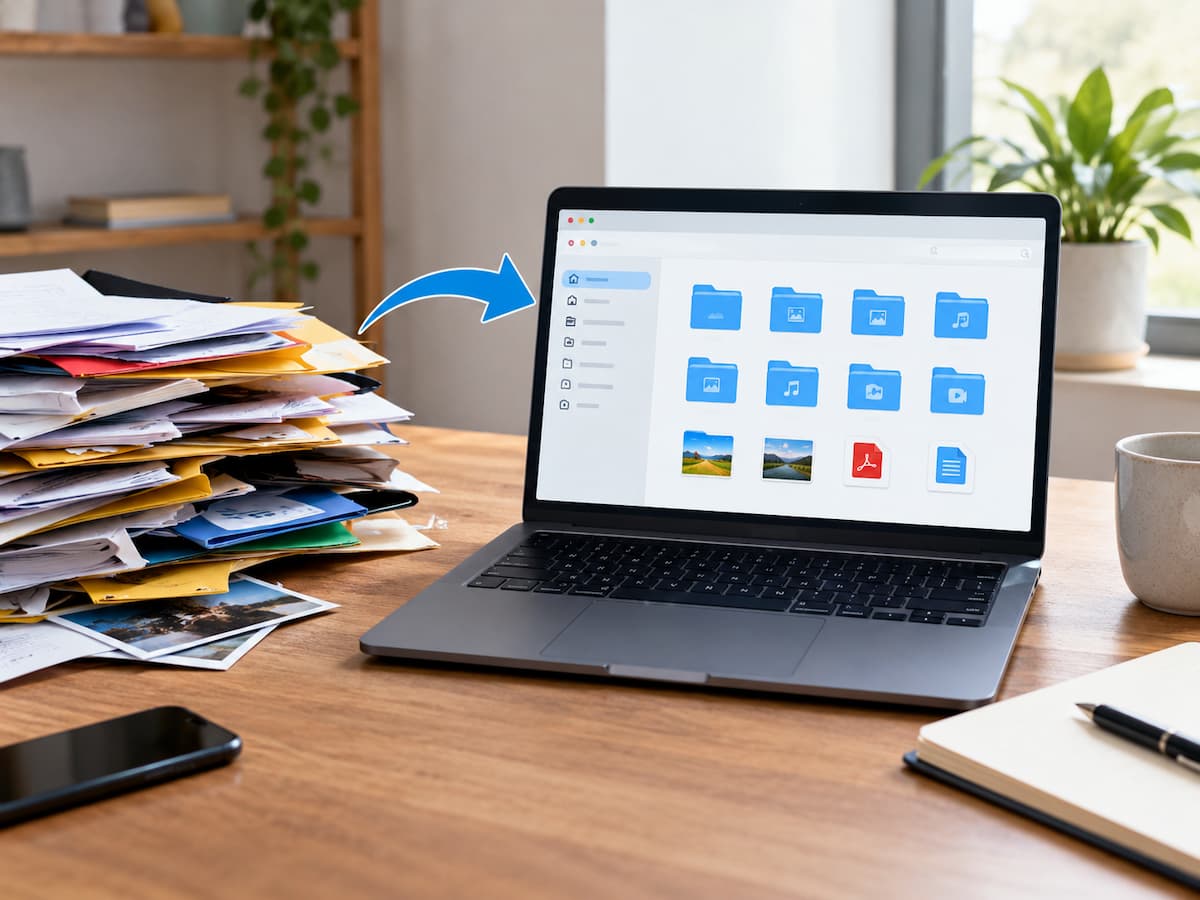
Nobody’s trying to do anything with a Downloads folder that’s become too cluttered. You can get files by downloading a document from a website, saving an email attachment, installing software, receiving an image, filling out an online form, or grabbing a file for a project. Most of these files are transient and are generally ignored after being opened or used. Months later the folder can be full of bills, photos, PDFs, installation files, duplicate documents, old projects and files with names that hardly give any idea what they are for. The instinct is to highlight everything, then begin to delete. But that isn’t necessarily the safest strategy. A messy Downloads folder could contain valuable information, and certain files may be impossible to replace. A better place to start is to slow down and distinguish the obvious clutter from files that require a closer look. You don’t need to get every file properly organised the first time around. A safe cleanup is mostly about knowing what you have before determining what can go.
Why the Downloads Folder Gets So Hard to Clean
Most computers have a weird use for the Downloads folder. It is handy as a convenient spot for files to land but is rarely used as a permanent filing system. This approach makes it easier to delay choices. You may require a downloaded document for five minutes, or you may need to save another file for several years. Since they both end up in the same area, the folder slowly turns into a mix of transient and vital material. File names make it worse. When you come back months later, a folder full of titles like “document.pdf”, “download (4).pdf”, “image-final.jpg”, and “invoice-new.pdf” doesn’t tell you much. They also tend to download the same thing twice when they’re not sure they’ve saved it already. The result is not always a technical issue. It is a matter of information.” The more diversified the folder is, the harder it is to make informed conclusions regarding individual files.
Don’t Start With Deletion
Restraint is the safest first step to cleanup. When a folder is too untidy, it’s tempting to delete everything since it seems like a quick solution. It can also delete files you want to keep. This approach is especially dangerous when you do not recall why you downloaded a file or if it is somewhere else. Rather than asking, “What can I delete? Begin with a simpler question: “What do I know this file is? That minor adjustment makes the procedure less damaging. A well-defined temporary image is easier to evaluate than an unknown PDF. An obsolete software installer can be replaced, but a document with information that is difficult to recover isn’t. You don’t have to decide on every file right away, either. If you can’t tell, don’t touch. A thorough cleanup first removes evident clutter and creates a cleaner environment to deal with the unknown material later.
Build a Temporary Holding Area
One handy technique to tame a disorderly folder is to create a temporary folder somewhere outside Downloads. You might call it something basic, like “Downloads Review” or “To Sort”. What it does is more important than what you label it. Clearly significant files can be transferred to appropriate permanent directories. Superfluous files may be deleted. You can put files that you aren’t sure how to classify in the temporary holding area and keep working. This is useful because it keeps the organisation separate from the deletion process. You’re not pressuring yourself to make a decision on the fate of every unknown file at once. You are just taking the uncertainty out of the main work area. But the holding folder is not to be used as a permanent dumping ground. Its purpose is to allow you some time to decide what to keep. Once you have the main Downloads folder under control, you can go back to the review folder and see what’s within with a little more context.
Sort by What the Files Actually, are
After removing or splitting the obvious clutter, look at what the remaining files do, not what they are called. A PDF could be an invoice, an instruction, a form or some crucial record. A JPG might be a quick photograph, or it might be the sort of thing that belongs in a personal photo album. A ZIP file can be an old project or just a download you don’t need. Organisation is more useful when you think in terms of purpose. You might have a separate space for work-related files, for example, and one for documents relevant to managing the household. Different destinations can be assigned to receipts, instructions, reference documents, photos, and active tasks. Just because a computer permits you to make dozens of folders doesn’t mean you need to. More categories can make future organisation more difficult, not easier. The good destination answers a simple question: “If I need this again, where would I look naturally?”” That often is a better guide than building a complex folder structure just based on file type.
Watch Out for Strange Files
Obvious temporary content is less deserving of attention than unknown files. If you see anything with a strange name, don’t assume it does nothing just because you don’t recall downloading it. First, check the filename and the file type. Look at when it was made or changed and see if its location gives you any hints. If it looks like it’s tied to a project, purchase, application or document you recall using, look into it before deleting. You should also not open unexpected executable files just to see what they are. Files that are supposed to run programs need more vigilance than normal documents or images. If you don’t know where a file came from or what it’s for, it’s better to check it out with trusted information or security software than to open it out of curiosity. Cleanups are meant to remove junk, not create a new security issue.
Older Installation Files Are Special Cases
Downloads folders are filled with installation items that were needed once and never used again. These may have extensions linked with installers or compressed packages depending on the operating system and application. Once the software has been properly installed, an old installer may no longer be needed. But that doesn’t imply you should go and uninstall every installation file now. Some installers might be helpful to reinstall software, function offline, or restore a particular version. Others may have been downloaded for a specified purpose that is not yet completed. Before uninstalling an installer, evaluate if the software is already installed, if the installer can be easily downloaded again from the creator, and if you have a need to keep that particular version. If it is clearly redundant and easily replaceable, it is a better candidate for deletion than an unidentified document.
Duplicate Files Need to be Investigated
Duplicates seem like straightforward targets but can be very tricky. In fact, two files with similar names can have different copies of the same document. The file “report.pdf” and the file “report (1).pdf” could be the same file or could be downloads from various points after they were changed. Don’t rely solely on the filename to find duplicates; check their details if needed. The size and dates of files, and (if appropriate) the actual contents, can help establish if two copies are really redundant. If both versions are identical, and one is archived in a better permanent location, then there’s little reason to have two copies. However, if they are different versions of a project or document, then they should not be considered mere duplicates. That’s why you shouldn’t clean a completely untidy Downloads folder by selecting everything at once. Some of the clutter may be repetitious, but repetition isn’t always redundancy.
Don’t Let Your Desktop Be Your Replacement
One common mistake is to move all of the downloads and put them on the desktop. The Downloads folder seems neater, but the problem has only relocated. The desktop is best left for anything you need to access regularly or temporarily. It will need cleanup if you move hundreds of files there. When you move something out of Downloads, give it an appropriate place to live. If a document is part of a continuing project, it belongs with that project. Other images should be kept with a personal photograph. A record to be retained long-term ought to have a reasonable place. Cleaning Downloads is not about having an empty-looking folder. The goal is to develop a more predictable way to manage files in the future.
Use Meaningful File Names for Later Usage
You don’t need to have a complex naming scheme for every file. Even a modest level of consistency can make future searches a lot easier. Take a name like “document-final-new.pdf” and compare it to something more descriptive that tells you what the document is about. The filename may help to identify the subject, organisation, project or date relevant to that material. The advantage becomes evident months later. Usually, you can tell the right document right away, instead of having to open up multiple files with similar names to find the important one. Good names also help you explore online storage and backups. Perfection is not the point. With that much information you can understand the file without opening it.
Create a Rule for New Downloads
Cleaning out an existing Downloads folder is only part of the solution. If you don’t develop a simple routine for handling future downloads, the same issue can reoccur. One practical rule is to treat Downloads as a landing zone, not a permanent residence. If you download something, use it as you normally would. Then decide whether to move it, keep it temporarily or delete it when its purpose is evident. You don’t need to make this decision immediately after every single download. Such a routine would get tiresome fast. Instead, a regular inspection can prevent the folder from falling back into the same overwhelming situation. The point is, the notion that whatever you download is inevitably worth retaining has to change. A file may be helpful for a purpose but not worth keeping permanently.
Consider What Your Computer Already Has Somewhere Else
Remember that copies of files that look vital might exist elsewhere than just in the Downloads folder, before you delete them. Some documents may also be present in cloud services, email accounts, project folders, external devices and storage tailored to applications. This can assist in determining if a file is truly redundant but should not be used as an excuse to presume that everything is backed up. A file stored elsewhere is only useful if you know where it is and can access it when needed. It is worth knowing, for notably critical papers, which is the main copy and which are backups or secondary copies. This way, you’re less likely to accidentally delete the only copy you have access to. Organising and backing up are two different things, but they are still linked. A clean Downloads folder does not mean your vital information is safe.
Simple Review Order Makes Job Easier
With hundreds or thousands of files in the folder, random work can be laborious. Basic sequencing can make the process seem more manageable. Start with files that are clearly temporary. For example, you downloaded something for a purpose, and you no longer need it. Then hunt for obvious duplication, old installation packages and documents that you can safely identify. Let unknown or possibly important files be for now. This arrangement works because straightforward decisions provide early wins. The fewer files there are, the more comprehensible the rest of the information is. Another alternative is to work in brief bursts rather than trying to do everything all at once. A concentrated sorting session of 15 to 20 minutes can make a lot of difference. The goal is to make safe selections, not to beat the folder to the finish line.
What a Healthy Downloads Folder Looks Like
A well-managed Downloads folder doesn’t have to be empty. Some people actually use it as a temporary workspace, especially if they regularly deal with paperwork. What matters is whether you keep what’s there. A healthy folder is not years’ worth of forgotten material that serves no obvious purpose. Files that have done their job should be differentiated from files pending action. Important records require a more stable, predictable home. The folder should also be simple enough to review that you don’t mind opening it up. If seeing downloads right away feels overwhelming, that is a symptom that the existing system needs attention. The best outcome is more than just a nice-looking folder. It makes the following download easier to manage.
Conclusion
A completely cluttered Downloads folder doesn’t need a major cleanup. In reality, the safest course is generally the reverse. Go slow, learn what you know, distinguish obvious junk from questionable files and don’t delete anything simply because you don’t know what it’s for. Think of it as a temporary landing, not an archive, while the folder is under control. Make sure vital things have a suitable place to live, get rid of stuff that plainly has outlived its usefulness and periodically evaluate the folder before another avalanche of downloads builds up. Digital organisation is at its best when it makes fewer, not more, decisions. A simple Downloads routine can achieve just that: fewer forgotten files, less searching, and a whole lot less anxiety the next time you need to locate something vital.
FAQs
1. Can I remove outdated downloaded install files?
Some can be deleted once the necessary program has been successfully installed, especially if the installer can be obtained again from a trustworthy source. But please ensure you see what the file is before you delete it.
2. Do I need to move all of the downloads to another folder?
No, not at all. You just move everything and just move the mess. Instead, find out what you need to store permanently, what is transitory and what is no longer helpful.
3. How often should I clear my Downloads folder?
There’s no schedule. A brief review every few weeks or once a month should prevent build-up, but if you download files often, you might want to check it more often.
4. What do I do with files? I don’t recognise?
Don’t run them automatically or delete them. Verify filename, file type, date and likely source. Be careful with files that can run applications or were downloaded from an unknown source.
5. Should the Downloads folder constitute permanent storage?
It is usually best considered a temporary landing spot. When files need to be retained long-term, it is usually easier to handle them if they are transferred to a suitable permanent place with a clear name.