
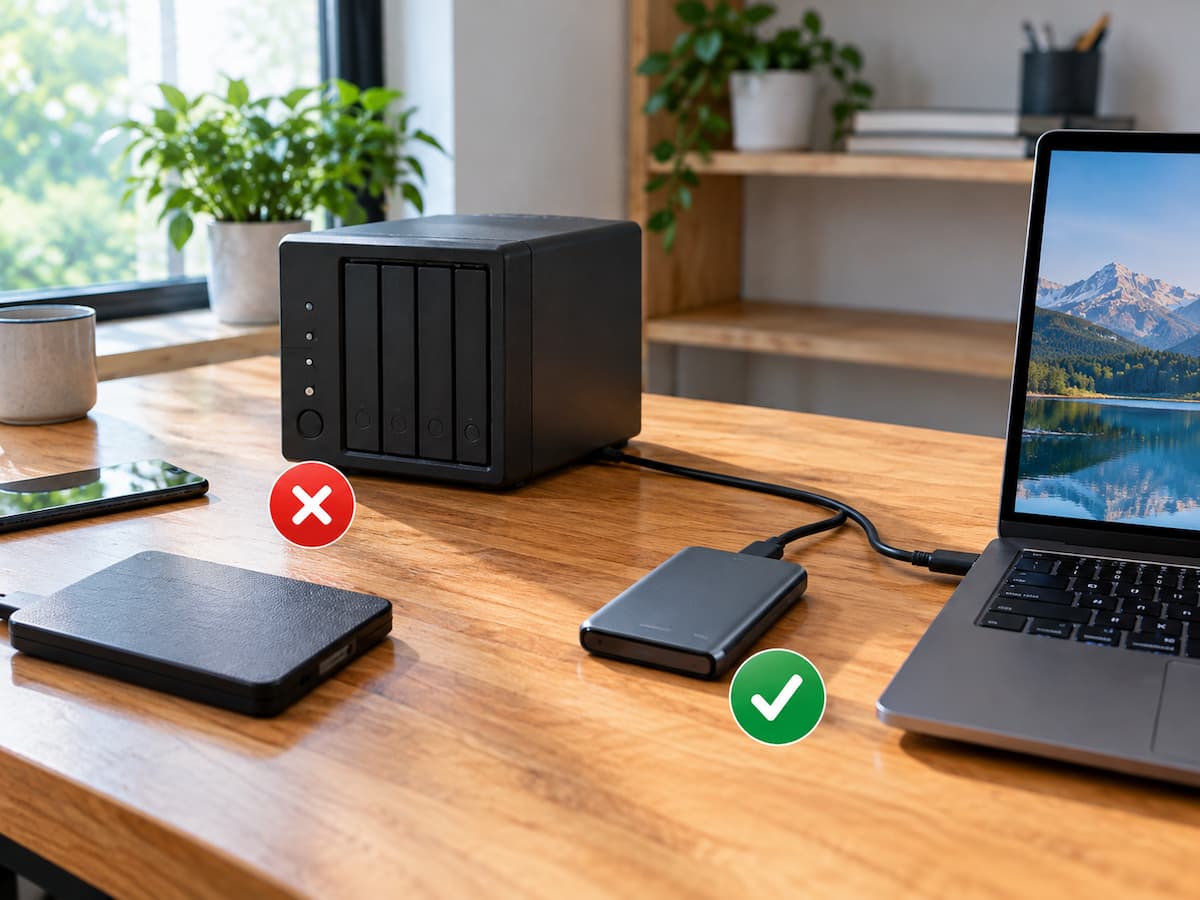
The word “storage” includes two different difficulties that are commonly mixed up. One is capacity. This is about how big the computer can hold data. The other is storage efficiency. That’s how fast the drive can read and write data. But a bigger drive solves a capacity problem. If you have an older, slower drive, upgrading to a quicker SSD can make it more responsive. They are related, yet they are not the same.
Imagine you had a computer with a 256 GB drive and just 10 GB of space left. A bump to 1TB might be a reasonable bump. Now suppose another machine with 1TB spare space, but the processor is struggling with the apps being used. Adding an additional 1 TB won’t make that processor any quicker. That’s something you should determine before you buy anything.
Start With the Symptom, Not the Upgrade
People often begin with the hardware they think they need.
“My computer is slow, so maybe I need more storage.”
That skips an important step. First describe the problem in plain language. Is the computer slow when starting? Does an application take a long time to open? Does it freeze when several programs are running? Is there simply not enough room for files? Does video editing become difficult during rendering? Does the system slow down after extended use?
Different symptoms point toward different causes.
| What you notice | What could be responsible? |
|---|---|
| A storage warning appears. | Low capacity |
| Files cannot be saved. | Low capacity |
| The computer takes a long time to start. | Storage, software, or other hardware |
| Programs freeze during multitasking. | Memory, processor, software, or heat |
| Video exports take too long. | Processor, graphics hardware, software, or storage |
| The computer becomes hot and slows down. | Cooling or thermal limitations |
| Everything feels slow. | Several possible bottlenecks |
| The drive is nearly full, and performance suffers. | Storage capacity may be contributing. |
The table is not a diagnostic tool by itself. It simply shows why the same complaint—“my computer is slow”—does not automatically lead to the same upgrade.
When a Storage Upgrade Really Does Solve the Problem
There are situations where storage is absolutely the right place to spend money. The clearest one is insufficient capacity. A larger drive directly addresses the problem if you regularly run out of space, delete files to make room, or cannot install necessary applications because the drive is full.
Storage also matters when you replace an older mechanical hard drive with a solid-state drive. The difference can be noticeable in everyday responsiveness because an SSD generally provides much faster access to stored data than a traditional hard disc. But even then, expectations matter.
An SSD can make a computer feel considerably more responsive without transforming every component inside it. A five-year-old computer with a slow hard drive may feel dramatically better after moving to an SSD. It will still have the same processor, memory capacity, graphics hardware, and other limitations. That is why it helps to define exactly what improvement you expect before buying.
The “My Computer Is Slow” Trap
This is where storage upgrades often go wrong. A person notices that the computer is slow and remembers that storage affects performance. They purchase a larger or faster drive, install it, and expect everything to improve.
Sometimes it does. Sometimes almost nothing changes. The reason is simple: the storage drive may not have been the bottleneck.
- If the processor is already running at its limits, a faster drive will not suddenly make demanding applications easy to run.
- If the computer does not have enough memory for the user’s workload, more storage will not solve the multitasking problem.
- If the system is overheating and reducing performance to control temperatures, changing the drive does not address the heat.
The upgrade can be perfectly good while still being the wrong answer.
Capacity Problems Are Easy to Recognise
A capacity problem usually leaves obvious clues. You may repeatedly see low-storage notifications. Large files may fail to save. Applications or operating-system updates may require you to remove files first. You may spend time moving photos and videos simply to keep enough free space available.
In this situation, more storage is not an unnecessary luxury. It is solving a real limitation. The key is not to confuse lack of space with lack of computing power. A computer can have 50 GB of free space and still be too slow for the work you are asking it to perform. It can also have a modest amount of storage and perform perfectly well if your files and applications fit comfortably.
A Nearly Full Drive Can Be Part of the Problem
There is one reason storage capacity can sometimes affect performance. When a drive becomes extremely full, the operating system and applications may have less room for temporary files and other operations. The exact effect depends on the system, workload, and type of drive.
This does not mean every computer with a full drive needs a new one. Sometimes deleting unnecessary files or moving large media libraries is enough. That makes cleanup a useful first step before spending money.
Try the Free Fix First.
Before buying a larger drive:
- Remove applications you no longer use.
- Clear unnecessary downloads.
- Move large video files to appropriate storage.
- Review duplicate files.
- Empty temporary storage where appropriate.
- Check which folders are consuming the most space.
- Keep a reliable backup before deleting important files.
If freeing space solves the immediate problem, a storage purchase may not be necessary yet.
When the Real Problem Is Memory
Memory and storage are frequently confused because both affect how a computer handles data, but they serve very different purposes. RAM provides working space for applications while the computer is running. Storage holds files and software for longer-term use. If you regularly keep a browser with many tabs open alongside editing software, spreadsheets, communication applications, and other programs, insufficient RAM may become the limiting factor.
Buying a larger storage drive does not increase the amount of RAM. This is one of the clearest examples of an upgrade solving the wrong problem. If the computer struggles specifically when several applications are active at once, investigate memory usage before assuming storage is responsible.
When the Processor Is the Bottleneck
Storage upgrades also cannot compensate for an ageing or underpowered processor. Consider a computer used for demanding video exports. The user notices that projects take a long time to render and decides to install a faster SSD.
The SSD may shorten loading times or make project files open more quickly. But if the processor is doing most of the rendering work, the export itself may remain slow. The computer received a legitimate upgrade. The user’s main complaint simply remained. This is why upgrades should be connected to specific tasks rather than general feelings about a computer being old or slow.
Heat Can Make a Good Computer Feel Bad
Thermal problems are another overlooked cause. Dust buildup, restricted airflow, ageing cooling components, or demanding workloads can cause a computer to run hot. Some systems respond by reducing performance to manage their temperature.
A storage upgrade does nothing to remove that heat. If a computer starts normally but becomes noticeably slower during extended workloads, overheating is worth considering. Sometimes cleaning the cooling system or improving airflow can address the real issue for far less money than replacing major hardware.
A Faster SSD Is Not a Universal Performance Upgrade
SSD upgrades have a strong reputation because they genuinely can improve the experience of older computers. The problem begins when that reputation turns into a universal recommendation.
An SSD can help with:
- Boot and startup responsiveness
- Application loading
- File access
- General system responsiveness
- Some workflows involving frequent data transfers
It will not automatically improve every workload. If the main limitation is processor performance, graphics performance, memory capacity, software compatibility, or thermal throttling, the SSD may have little effect on that specific task. Think of an SSD as a tool for certain bottlenecks, not as a cure for an ageing computer.
The Upgrade Can Also Create a Compatibility Problem
Older computers can have hardware limitations that make storage upgrades less straightforward. Before buying a drive, check what the computer actually supports.
The relevant questions may include:
- What type of storage interface does the computer use?
- What physical drive size fits?
- Is the storage user-replaceable?
- Does the system support the desired drive type?
- Is there a storage capacity limitation?
- Will the operating system need to be reinstalled or cloned?
- Is the existing drive needed for another purpose?
- Does the computer have enough physical space for the new hardware?
The answer varies by model. A drive that works perfectly in one computer may be unsuitable for another.
The Cheapest Upgrade Is Not Always the Best Upgrade
Another mistake is choosing storage purely by price per gigabyte. A larger drive may be attractive because it offers more capacity, but the real requirement might be different. If you mainly need space for photos and documents, capacity may be your priority.
When replacing a very slow system drive, you may find that responsiveness is more important. If you edit large video files, both capacity and sustained performance may matter. The right choice depends on what the storage is being asked to do.
Match the Upgrade to the Problem
- Need more room? Prioritise appropriate capacity.
- Replacing a sluggish mechanical drive? An SSD may provide a meaningful responsiveness improvement.
- Computers struggle with multitasking? Investigate memory.
- Demanding applications run slowly? Look at processor and graphics limitations.
- Does the system slow down when hot? Investigate cooling.
- Applications no longer run properly? Check software and operating-system compatibility.
This simple separation can prevent a lot of unnecessary spending.
Sometimes the Storage Upgrade Is Still Worth Doing
Avoiding the wrong upgrade does not mean avoiding storage upgrades altogether. Storage is one of the more practical improvements when there is a genuine need for it. A larger drive can make file management easier. A suitable SSD can make an older computer more pleasant to use. Additional storage can also reduce the temptation to delete files just to create space. The important point is to know what the upgrade is meant to accomplish. A good upgrade has a measurable purpose.
For example:
“I need more space for my photo library.”
That is clear.
So is:
“My computer still has a mechanical hard drive, and I want faster startup and application loading.”
Less useful is:
“My computer feels old, so I think I need a bigger SSD.”
The first two statements describe problems. The last describes an assumption.
A Five-Minute Upgrade Check
Before ordering a new drive, pause and answer these questions:
1. What exactly is wrong?
Describe the problem without mentioning a possible solution.
2. Is storage capacity actually limited?
Check how much free space remains.
3. Does the problem happen during a specific workload?
A computer that struggles only during video rendering has a different problem from one that is slow everywhere.
4. What component is under pressure?
Look at the processor, memory, storage activity, and temperatures while the problem is happening.
5. What improvement should the upgrade produce?
Be specific. Faster startup? More capacity? Faster application loading? Easier file management?
If you cannot clearly answer the final question, wait before buying.
The Real Cost of Solving the Wrong Problem
The most significant downside of a wrong upgrade is not always the price of the component. It is the false expectation. You spend money, spend time installing or configuring the hardware, and then discover that the computer still behaves almost exactly as before.
That can lead to another purchase. A storage upgrade becomes a memory upgrade. Then perhaps a cooling repair. Then another component. Eventually, you have spent a substantial amount trying to rescue a machine whose basic hardware is simply no longer suited to the workload. At that point, replacing the computer might have been the more sensible decision from the beginning.
Keep the Upgrade Small When the Problem Is Small
A sensible rule for ageing computers is to make the smallest change that clearly addresses the problem.
- If storage is full, add storage.
- If an old hard drive is holding back responsiveness, consider an SSD.
- If memory is the limitation, investigate RAM.
- If overheating is the problem, address cooling.
- If several major components are struggling simultaneously, stop treating individual upgrades as isolated fixes and reconsider the computer as a whole.
This prevents the common mistake of turning a simple maintenance decision into an expensive chain of upgrades.
Conclusion
For older computers, upgrading storage can be one of the most effective improvements—but only if storage is actually the problem. Higher capacity can resolve a lack of space, and faster storage devices can improve certain aspects of system responsiveness. However, neither can substitute for sufficient RAM, a powerful processor, a capable graphics card, adequate cooling, or proper software support. Before purchasing hardware, you should first identify the problem and then consider your upgrade options. This alternative approach can save you money, prevent unnecessary issues, and make your next hardware purchase more efficient.
FAQs
1. Will my computer run faster if I have more storage space?
Not necessarily. Higher capacity provides more storage space but does not automatically improve processor performance. In some cases, however, replacing a slower storage device with a solid-state drive (SSD) can improve system responsiveness.
2. Should I buy an SSD if my computer is slow?
That depends on the cause of the slowness. If your computer uses an older hard disc drive (HDD), an SSD can significantly speed up boot times and application loading. However, if the bottleneck is the processor, RAM, graphics card, or cooling system, an SSD may not solve the underlying problem.
3. Will insufficient disc space make my computer slow?
Insufficient disc space can indeed cause performance issues in some cases, but the specific impact depends on your system and workload. Before buying more storage, check whether deleting or moving unnecessary files frees up enough space.
4. Are higher-capacity solid-state drives (SSDs) better than lower-capacity ones?
Not necessarily. Higher-capacity SSDs offer more storage space, but the best choice depends on your storage needs, your computer’s compatibility, the workload, and your budget.
5. How can I determine the cause of my computer’s slow performance?
Observe your computer’s behaviour when issues occur. Observe metrics such as storage activity, memory usage, processor usage, and temperatures reported by the operating system. The goal is to identify which resource is actually reaching its limit.
6. When should I stop upgrading my old computer?
Consider stopping upgrades when multiple components are outdated, repairs are frequent, essential software is no longer supported, or the total cost of an upgrade is nearly equal to that of a suitable new computer. At that point, an individual upgrade may no longer be cost-effective.