
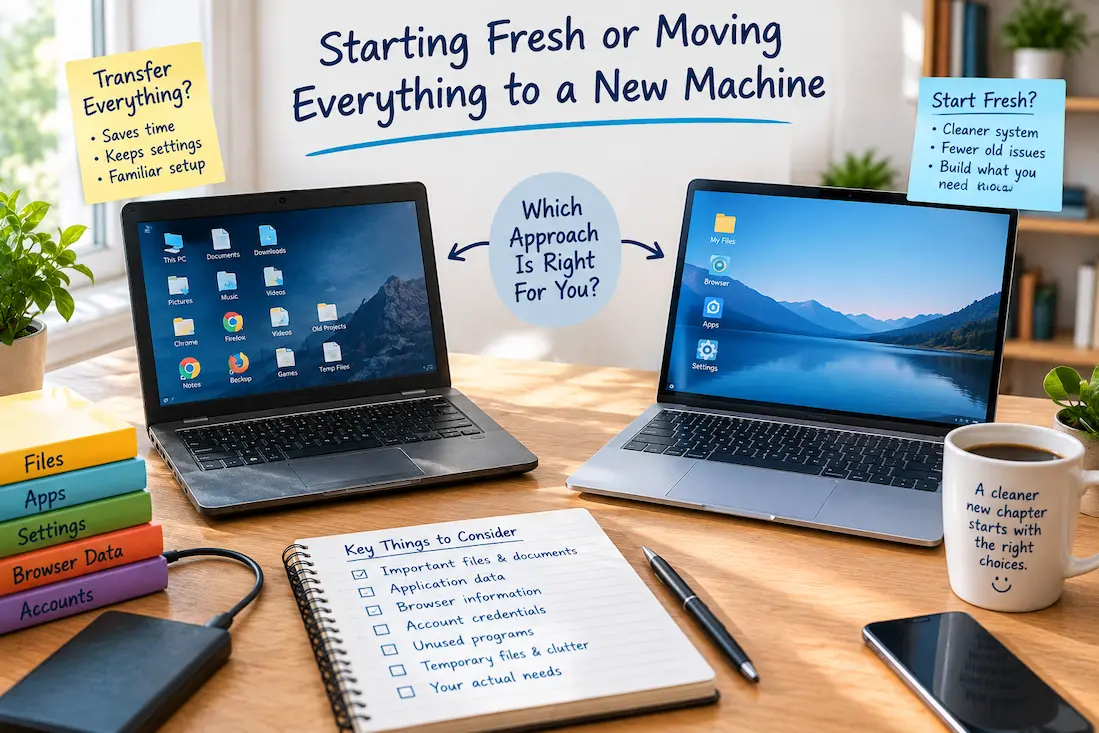
When purchasing a new computer, you face a choice that is often overlooked: should you transfer your old system to the new computer, or start fresh? Both methods are viable, but it isn’t always a question of which is better. Transferring everything at once can save time and preserve familiar settings, whereas starting from scratch can result in a cleaner system and reduce the likelihood of past issues recurring.
It is unwise to view this as a simple choice between “copying everything” and “deleting everything.” Instead, you should distinguish between what you actually need and what you currently have. You might want to transfer personal files, important application data, browser information, and account credentials, but you likely don’t want to carry over years of useless programs, temporary downloads, outdated settings, and forgotten junk files.
What Are You Actually Trying To Preserve?
Before choosing a migration method, distinguish between your data and your old computing environment. Photos, documents, project files, financial records, saved credentials, and other personal items fall under the category of data. Your computing environment, on the other hand, consists of installed applications, your desktop layout, old settings, browser plug-ins, temporary files, and various configuration choices made over time.
You don’t have to bring all of that with you.
You can transfer all your important files to your new computer without creating an exact replica of your old one. Often, this is the smartest approach. You can keep your existing files without dragging along software you installed once, tested briefly, and then forgot about for years.
Before making a decision, take a moment to list the few things you would truly miss about your old computer. That list will usually be much shorter than the sum total of what is currently on your machine.
When Moving Everything Makes Sense
Since your old computer is already set up and works the way you like, transferring those settings makes sense. If you rely on specific software, applications requiring careful installation, custom workflows, or configurations that take a long time to recreate, preserving your existing environment can save you a great deal of effort.
It also makes sense if the new computer is simply replacing the old one without changing your way of working. For those who use the same programs and established workflows all day long, maintaining the status quo is clearly more sensible than starting from scratch.
Time is another important factor to consider. Starting fresh sounds appealing, but reinstalling applications, logging into accounts, restoring preferences, reconnecting peripherals, and setting up new workflows can take much longer than you expect. If your old system is stable and relatively clean, you might consider migrating more of your data; doing so can reduce the hassle.
It is important to consider whether you are migrating a functional system or just a lot of useless clutter.
Signs Your Existing Setup Is Worth Preserving
Your old computer may be a good candidate for a fuller migration if:
- You regularly use most of the installed software.
- Your files are already organized reasonably well.
- Important applications have settings you would find difficult to recreate.
- Your workflow depends on several interconnected programs.
- The old machine is stable and does not have persistent software problems.
- You know where your important data is stored.
If most of these describe the old computer, there is less reason to rebuild everything manually.
When Starting Fresh Is The Better Option
Starting fresh becomes more attractive when the old computer has accumulated problems over several years. Perhaps there are dozens of applications you no longer use, browser extensions you forgot about, duplicate files, outdated utilities, strange settings, or a storage system that has become difficult to understand.
In that situation, copying the old environment wholesale can reproduce the very problems you wanted to leave behind.
A clean installation also gives you an opportunity to reconsider what deserves a permanent place on the new machine. Instead of asking, “What was installed on my old computer?” ask, “What do I actually use now?” That small change in thinking can produce a much cleaner result.
Starting fresh is particularly useful when the old machine has become difficult to troubleshoot or maintain. You should still preserve your important data first, but there is no reason to recreate every part of a setup that has already become frustrating.
Your Files Usually Deserve A Different Treatment From Your Apps
One of the most useful compromises is to move important files while reinstalling applications selectively.
Your photographs and personal documents do not necessarily need the same migration strategy as your software. You can preserve the information while deciding which programs deserve to return.
For example, suppose the old computer contains 150 installed applications. You may discover that only 20 are used regularly, another 15 are occasionally useful, and the remaining programs have not been opened in years. Moving all 150 simply because they are already there adds maintenance without providing much benefit.
The same principle applies to browser extensions and utilities. Reinstall what solves a current problem rather than automatically restoring everything that existed on the old machine.
This creates a middle ground between a complete clone and a completely empty computer.
Don’t Let The Downloads Folder Decide For You
A messy Downloads folder can make the old computer appear more complicated than it really is.
Before deciding how much to move, review the old Downloads folder separately. It may contain important documents mixed with installation files, temporary attachments, duplicate photographs, outdated PDFs, and files you downloaded once and never opened again.
You do not need to organize every file perfectly before moving to the new computer. But you should identify anything that would be difficult to replace. The Downloads Folder Audit Worksheet is useful for going through this particular area without making deletion decisions too quickly.
The objective is simple: preserve valuable information and avoid turning temporary storage into permanent storage on the new machine.
Think About Application Data, Not Just Applications
Applications can be reinstalled. Their data may be more difficult to recreate.
Before starting fresh, identify programs that contain information you created or accumulated over time. This might include writing software, accounting applications, email programs with local archives, photo-management tools, project software, recording applications, or other programs that store information outside your normal documents folders.
This is where a simple application list can be misleading. Seeing that a program is installed tells you almost nothing about whether it contains important local information.
For each important application, find out whether its data is synchronized, backed up, exported, or stored locally. If you cannot determine where the information lives, investigate that before wiping or retiring the old machine.
A New Computer Is Also A Chance To Change Your Filing System
If your old computer’s files are difficult to find, copying the entire structure may simply move the problem.
You do not need to create dozens of folders in an attempt to organize everything perfectly. A simpler structure that reflects how you actually retrieve information is usually easier to maintain.
For example, documents that you frequently need may deserve active folders, while older records can move into a clearly labeled archive. Receipts, warranties, personal documents, work projects, and photographs can each have logical homes without creating a separate folder for every individual file.
If you want to design the structure before moving your data, the Personal Digital Filing System Worksheet can help you work out where different types of files should live.
Don’t Forget The Browser
A fresh computer can make browser migration surprisingly important.
Bookmarks, saved credentials, browser profiles, extensions, reading lists, and other information may be part of your daily workflow. Before abandoning the old setup, confirm that the information you need is synchronized or otherwise preserved.
At the same time, this is a good place to be selective. You probably do not need every old browser extension, every saved tab, or years of accumulated browsing clutter.
A useful approach is to move the information you deliberately use and rebuild the rest based on current needs.
The Decision Can Be Made In Three Questions
If you are still unsure which approach to use, ask yourself these questions:
| Question | If The Answer Is Yes | Likely Direction |
|---|---|---|
| Is the old computer stable and well organized? | Little clutter needs to be carried over | Move more of the existing setup |
| Would recreating your workflow take significant time? | Existing configuration has real value | Preserve more |
| Has the old computer accumulated years of problems and unused software? | A migration could reproduce the mess | Start fresh |
| Are most of your important files already independent of installed software? | Data can be moved separately | Start fresh or use a hybrid |
| Do you use specialized software with complicated settings? | Rebuilding may be difficult | Preserve or carefully migrate |
| Are you mainly replacing hardware rather than changing your workflow? | Your current setup already works | Moving more may be practical |
You do not have to choose one extreme. In many situations, a hybrid migration is the most practical answer: preserve your important data and selected application information, then reinstall only the software you still need.
The Hybrid Approach Often Gives You The Best Result
A hybrid migration starts with the assumption that the new computer should be familiar where familiarity is useful and different where the old setup has become a burden.
Move your important personal files, photographs, documents, and necessary application data. Reinstall the programs you actually use. Recreate important browser settings and accounts. Then leave obsolete software, temporary files, and unnecessary clutter behind.
This approach takes more thought than simply copying everything, but it avoids the opposite problem of starting with a completely blank machine and forgetting something important.
It also makes the new computer easier to maintain because you are establishing its structure intentionally rather than inheriting every decision made on the old one.
Before You Retire The Old Computer
Do not reset or dispose of the old computer immediately after the new machine appears to be working. Use the new computer for normal tasks first. Open important documents, access your usual accounts, launch the applications you depend on, check photographs, and perform the work you normally do.
That real-world testing is valuable because migration problems often appear only when you try to perform an ordinary task. A missing file may not matter during setup but become obvious when you need it three days later.
The New Computer Transition Checklist can help you work through the transition in stages, including verification before the old computer is finally reset.
Don’t Confuse A Clean Computer With An Empty Computer
Starting fresh does not mean deleting everything and installing as little as possible. A useful new computer should contain the files, applications, accounts, and tools that support your current needs.
Likewise, moving everything does not necessarily mean making a mistake. If the old system is organized, stable, and genuinely useful, preserving more of it can be perfectly reasonable.
The better decision depends on what you are carrying forward. Move the things that still serve you. Rebuild the things that have become unnecessarily complicated. Leave behind the clutter that no longer has a purpose.
That approach gives you something better than either extreme: a new computer that still feels familiar where it matters, without automatically inheriting everything from the old one.