
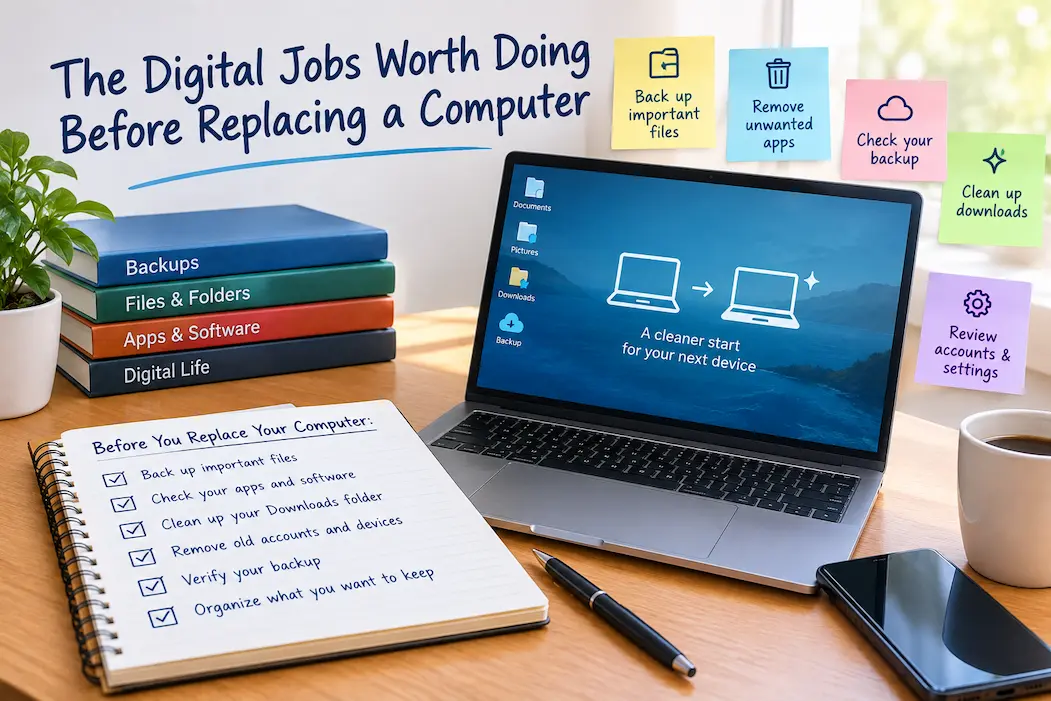
Replacing a computer is usually treated as a shopping and transfer task: choose the new machine, move your files, install your programs and retire the old one.
But there is useful digital work to do before the replacement arrives.
The goal is not to make the old computer perfectly organized. It is to prevent the new computer from inheriting problems, while making sure important information is not left behind.
A short pre-replacement review can save hours of searching later.
1. Identify What You Cannot Easily Replace
Start with information that would be difficult or impossible to recreate.
Look beyond the folders you normally use. Important material can be hiding in:
- Desktop
- Downloads
- Documents
- old project folders
- scanned documents
- exported files
- application-specific folders
- local photo or video libraries
Ask one simple question:
If this computer stopped working tomorrow, could I get this file back from somewhere else?
If the answer is no, deal with that file before anything else.
2. Verify Your Backup Instead of Assuming It Works
A computer replacement is a bad time to discover that your backup was incomplete.
If you use cloud storage, open several older files directly from the service.
If you use an external drive, connect it and check that the backup can actually be accessed.
Do not treat a synchronization icon or “up to date” message as proof that every important file is recoverable.
Check a few different types of information:
- an important document
- an older photograph
- a spreadsheet or project file
- something that would be difficult to recreate
The purpose is not to perform a technical backup audit.
It is to find obvious gaps while the old computer is still available.
3. Review Downloads Before Moving Them
One of the easiest mistakes is copying the entire Downloads folder to the new computer and promising to clean it up later.
That usually creates the same problem on the new machine.
Separate files into simple groups:
| Type | Typical action |
|---|---|
| Important records | Keep and move to a proper home |
| Work or personal files | Keep if still needed |
| Temporary downloads | Usually leave behind |
| Re-downloadable installers | Usually do not need to move |
| Unknown files | Review before deciding |
Do not delete something merely because it is old.
The objective is to avoid turning a temporary folder into permanent storage on the new computer.
4. Check Applications That Store Their Own Data
Reinstalling an application does not necessarily restore everything that was inside it.
Pay special attention to software that may contain locally stored information, such as:
- email applications with local archives
- accounting software
- note-taking applications
- design and creative software
- photo-management tools
- recording applications
- project-management tools
For each important application, determine whether its data is synchronized, backed up, exported or stored only on the old computer.
The application may be easy to download again.
The information created inside it may not be.
5. Make a Short List of Software You Actually Need
A new computer does not need to become a copy of the old one.
Look through the programs you use and divide them into:
- Essential: used regularly
- Occasional: still useful but not frequently used
- Finished: no longer needed
For essential software, record the program name and the account or subscription associated with it.
If a program requires a license, plug-in, driver or special configuration, note that too.
This small list can be much more useful than trying to remember everything after the old computer has been reset.
6. Check Browser Information You Actually Need
Browsers can accumulate years of information.
Before replacing the computer, check:
- bookmarks
- browser profiles
- reading lists
- important extensions
- saved passwords or password-manager access
- important synced information
Do not assume synchronization is working simply because it is enabled.
Make sure you know which account is being synchronized and that you can sign in independently of the old computer.
You also do not need to carry hundreds of old tabs and forgotten extensions to the new machine.
7. Check Account Recovery Before You Lose the Old Device
A new computer can reveal account-access problems that have existed unnoticed for years.
Pay particular attention to your primary email account because it may be used to recover access to many other services.
Before retiring the old computer, make sure you know how to access important accounts using the recovery methods you actually have available.
Check:
- recovery email
- recovery phone number
- authentication method
- password manager access
- security keys or other sign-in devices
Do this before wiping the old machine.
8. Decide Whether You Are Starting Fresh or Migrating
There are three practical approaches.
Start Fresh
Install the software you actually use and move only the files you need.
This can produce the cleanest result when the old computer has accumulated years of unused programs and confusing settings.
Transfer Most Things
Move a large portion of your existing setup when the old computer is stable, familiar and reasonably organized.
This is convenient, but it can also carry old clutter into the new machine.
Use a Hybrid Approach
Keep important files and settings, but reinstall the applications you actually use.
For many people, this is a useful middle ground.
9. Improve the Filing System Before You Copy Everything
A new computer is a natural opportunity to stop repeating an old filing problem.
If you regularly search for files because you cannot remember where you saved them, copying the exact same folder structure simply moves the problem.
You do not need dozens of folders.
A few clear locations, sensible filenames and a distinction between active work and older records are often enough.
Your filing system should answer a practical question:
“Where would I look for this six months from now?”
For a broader system, see A Simple Digital Filing System for Finding Your Files Again.
10. Review Important Photos Without Trying to Organize Everything
Photos deserve attention because old originals can be difficult to replace.
Before changing computers, determine where important originals are stored.
Check:
- the current computer
- cloud photo services
- external drives
- older folders
- manually imported photographs
- videos and scans
You do not need to organize your entire photo library before buying a new computer.
The priority is knowing where the originals are and making sure important material exists somewhere accessible.
11. Decide What Happens to the Old Computer
The old computer’s destination changes what you need to do next.
| Destination | Main concern |
|---|---|
| Keep as a second computer | Reliability, software support and useful purpose |
| Keep as emergency backup access | Make sure essential accounts and files can be accessed |
| Give to someone else | Remove accounts and personal information |
| Sell | Protect data before transfer |
| Recycle | Protect data and handle the device appropriately |
If you are considering keeping it as a secondary machine, see When Keeping a Second Computer Still Makes Sense.
If the computer is being replaced because it is old or unreliable, evaluate the device separately from the question of what happens to your files.
12. Do Not Wipe the Old Computer Too Early
This is one of the most important practical rules.
Keep the old computer available until you have:
- verified important files on the new system
- confirmed important backups
- signed into essential accounts
- checked important application data
- tested the new setup
A file can appear to have transferred successfully and still turn out to be incomplete, misplaced or inaccessible later.
The old computer gives you another opportunity to recover something you missed.
A Short Pre-Replacement Audit
You can use this order when time is limited:
- Identify irreplaceable files.
- Verify that important backups can actually be opened.
- Review Downloads.
- Check application-specific data.
- List essential software and licenses.
- Check browser and account access.
- Confirm recovery methods.
- Choose fresh, full-transfer or hybrid migration.
- Decide what happens to the old computer.
- Keep the old machine until the new setup is verified.
This covers the decisions that are hardest to reverse.
What You Do Not Need to Finish Before Replacing the Computer
Preparation can easily become another giant cleanup project.
You do not have to:
- rename every old file
- organize every photograph
- delete every unused application
- create a perfect folder hierarchy
- empty every old Downloads folder
- make the old computer look completely clean
Those are separate projects.
Before a replacement, prioritize preservation, access and decisions that become harder after the old machine is gone.
The Goal Is a Better Starting Point, Not a Perfect Old Computer
A new computer gives you an opportunity to decide what deserves to come forward.
You can leave behind temporary downloads, unused applications and years of unnecessary configuration.
At the same time, you can deliberately preserve important documents, photographs, projects, account access and application data.
That is a better approach than automatically copying everything or deleting everything.
The question is not:
“How do I move my old computer to the new one?”
It is:
“What from my old computer still deserves to become part of my new system?”
Conclusion
The most useful work before replacing a computer is not a massive cleanup.
It is a short review of the information, accounts, applications and decisions that could cause trouble later.
Verify your backups. Find important files. Check application data. Confirm account recovery. Decide what software you actually need. Choose what happens to the old machine, and do not wipe it until the new setup has been tested.
Once those decisions are made, the actual migration becomes much easier.
Related Guides
For the files and information people commonly miss during a move, see The Files People Forget During a Computer Move. For setting up the replacement machine, see A Cleaner Way to Start With a New Computer.
FAQs
Do I need to clean my entire computer before replacing it?
No. Focus on important files, backups, application data, account access and anything that would be difficult to recover.
Should I copy my entire old computer to the new one?
Not necessarily. A fresh installation or hybrid approach can avoid carrying years of unused software and settings into the new system.
What should I check before wiping my old computer?
Verify important files, backups, account access, application data and the new computer’s basic operation. Keep the old machine available until you are confident nothing important was missed.
Should I move my entire Downloads folder?
Usually not. Review it first and move files that still have a clear purpose. Temporary downloads and re-downloadable installers often do not need to come forward.
What happens to programs that store data locally?
Check their data separately. Reinstalling the program may not restore locally stored projects, archives or settings.
Should I start fresh on a new computer?
Starting fresh can make sense when the old system is cluttered or poorly organized. A hybrid migration is also useful when you want to preserve important files while reinstalling only the software you still use.
When can I safely reset the old computer?
After important files and application data have been verified on the new system, backups have been checked, essential accounts work and you are confident the old machine is no longer needed for recovery.